






















Trending Topics

USB flash drives still feel surprisingly useful despite cloud storage
Am I the only one who is using USB flash drives in 2026? It is extremely portable, handy, helping me in quick transfers, backups, and offline sharing. My friend has a travel business, and most of the promotional videos and travel itineraries are being shared via USB drives only. Really, a tangible product. Are you also using it?

Are there any smartwatches that charge via USB Type-C?
Anyone here who can suggest to me the best smartwatch available in India that I can use on a single charge?

4.5 inches smartphone+mini usb otg keyboard+8MP camera
Suggest me a smartphone with 4.5 inches screen ( that fits smoothly in a trouser pocket as I travel a lot) and compatible mini USB OTG keyboard and 8MP primary camera within Rs 8000
I only notice how important laptop ports are when I suddenly need one that I do not have
Most of the time I do not care about them at all. Then one day I need HDMI or USB and start looking for adapters.

Portronics launched a home theatre system
Portronics has launched the Pure Sound Pro X2 home theatre system in India with a 5.1-channel setup, 150W sound output, wired subwoofer, Bluetooth 5.4, HDMI ARC, Optical, USB, and AUX support. It also comes with different sound modes for movies, music, news, and night mode. The launch price is Rs. 5,999. Would you prefer spending money on such a home theatre system?

VU TV Service Center in Rajahmundry Call : 8712292555
Looking for reliable VU TV repair services in Rajahmundry? ✅ VU TV Service Center provides fast, professional, and affordable TV repair solutions for all VU LED, Smart, Android, and 4K TVs. ????️ Our Services: ✨ Why Choose Us? ???? Call Now: 8712292555???? VU TV Service Center – Rajahmundry ????
✔️ Experienced Technicians
✔️ Genuine Spare Parts
✔️ Quick & Reliable Service
✔️ Affordable Charges
✔️ Customer Satisfaction Guaranteed
???? VU TV Service Center – Rajahmundry
⏰ Fast Service | Quality Repairs | Trusted Support

Please help me choose a Dolby Atmos Sound Bar - MOTOROLA AmphisoundX Dolby ATMOS vs Zebronics ZEB-JUKE BAR 9800 DWS PRO
Which one of the below is better / value for money?
1. MOTOROLA AmphisoundX Dolby ATMOS with Wireless Surround Sound 500 W Bluetooth Soundbar (Black, 5.1 Channel) - ₹43,820.00
2. Zebronics ZEB-JUKE BAR 9800 DWS PRO DOLBY ATMOS Bluetooth Home Theater Soundbar With Digital Wireless Subwoofer Supporting 4K HDR, USB, AUX, Optical, 3xHDMI & Remote Control. (450 Watt, 2.1.2 Channel) - ₹19,999.00
Appreciate any help in this regard. Thanks...

MINI PC Configuration
Friends, I require configuration of MINI PC CPU(Without Monitor) under ₹14K. It'll be used for basic software running(Word/excel), no gaming but media playing(1080p videos) & everyday use. Reply in the following manner: CPU Component Name - Approx. Price(₹) *** DVD Drive Not Required.
1. Cabinet(MINI ITX)
2. Processor(intel only)
3. Motherboard(with HDMI+USB 3.0)
4. RAM
5. HDD
Mobile Professional Reviews--Oppo R5 review
Oppo's R5 is a seriously gorgeous phone. Clad in metal, it's super-thin -- just 4.85mm (0.19 inches) deep, and it weighs a scant 155 grams (5.5 ounces). It's certainly impressive, but this comes at the loss of the 3.5mm audio jack, so you'll have to use Bluetooth headphones if you want to listen to music. For Android fans envious of the iPhone 6 's slim frame, well, look no further. The R5's ultra-slim body beats the iPhone handily, and will draw envious stares from other Android owners as well. But slimness isn't all that great without the performance to back it up, and this is where the phone falters. It's oftentimes sluggish, and the camera takes forever to start up. The phone's thin frame also doesn't help with the heat and it can get uncomfortably hot at times. Oppo hasn't yet revealed exact dates for the phone's availability, but the Chinese company intends to sell it globally, either through its online store or working in partnership with local distributors. What I do know is that there will be three versions due to the different LTE bands -- one for the US, one for China and one for the rest of the world. Price wise, the R5 will be sold at $449, which converts to roughly £310. It will also come unlocked, so you'll be able to use the phone on 3G mostly everywhere. The R5 is encased in metal -- with a hand-polished steel frame and, on the back, brushed aluminum. This gives the phone a premium feel that you'd expect from a more expensive device. The two-tone color scheme (either white and silver or white and gold) at the back does draw comparisons to Apple's iPhone designs, but the shape of the phone is much more angular. Despite being thinner, it doesn't feel as slippery as the iPhone. One downside to the thin frame of the phone is that the rear 13-megapixel sticks out, much like Apple's iPhone. However, unlike the small bump of the iPhone 6, the R5's rear camera pops out a fair way, enough that it makes the phone uneven when placed on a flat surface. The R5 sports a 5.2-inch AMOLED display, with a full HD resolution of 1,920x1,080 pixels. The screen is bright and sharp, while colors were vibrant. I do have issues with the auto-brightness settings of the phone -- it can sometimes be too dim. Like most Chinese-made smartphones, the R5 sports physical home, menu and back keys. I'm not a fan of physical keys since I feel software keys are better to interact with -- you can (depending on the OS) switch the back button to either the left or right position. The volume and power keys are on the right side, with the micro-USB port at the bottom. As mentioned earlier, there's no 3.5mm audio jack. Oppo's R5 is powered by an octa-core 1.5GHz Qualcomm Snapdragon 615 processor, and in theory, should have enough juice to power the phone. But my experience with the device was less than satisfactory: at times the phone would pause between switching apps, for example. I reckon a software update could fix this, and I will update the review if it does. The phone packs 2GB of RAM, 16GB of onboard storage and a 2,000mAh battery. There's no microSD card slot to expand that storage, which limits the number of apps you can install and the number of tunes and movies you can keep onboard. The phone is powered by Android 4.4 KitKat -- not the latest 5.0 Lollipop -- with Oppo's custom ColorOS UI on top. The software is very much improved from the company's first version, How to move apps from an old iPhone to a new iPhone though it looks similar. For one, it's much flatter.
See a phone that's less than 5mm thick, How to Transfer Playlist from iTunes to iPhone with Data Remained the... See full gallery 

Honest review of Le1s after 2 months of usage
Hi Guys, This is Rajesh and today I am sharing my views on the LeEco Le 1s that I have been using for the past month. Yes, we all know that LeEco, formerly known as Letv, launched two smartphones in the market - Le 1s and Le Max. The Le 1s is priced at Rs. 10999 and the Le Max (64GB) is priced at Rs. 32999. Le 1s is their lowest priced phone but at the same time gives features of a flagship phone. LeEco claims that they are selling Le 1s at lesser than BOM (Bill of Materials) price (which is more than Rs. 16000). Let’s move on to the review then. BUILD & DESIGN SCREEN & MULTIMEDIA CAMERA PERFORMANCE CONNECTIVITY MEMORY SOUND QUALITY PROS: CONS:
The first time I opened the box I was like “Wow, awesome!”, yes guys it looks great, it really looks fantastic. One of the most beautiful phones I have ever seen. The mirror-surfaced fingerprint sensor, a smart looking camera and all metal body - all these things make Le 1s a looker! It looks premium and it feels premium. The weight is a bit on the upper side but still with a 5.5-inch Full HD display and bezel-less design it is very handy and easy to use.
9/10
Le 1s comes with a 5.5-inch LCD IPS Display covered by Gorilla Glass 3. The display is great with awesome colours and contrast levels. It is sharp enough and watching Full HD videos on the display is a visual treat. Mediatek’s clear motion technology is there, so there is not even a single frame drop. It can compete with flagship phones for sure.
9/10
Le 1s comes with a 13 MP rear camera and a 5 MP front camera. Rear camera is an ISOCELL unit with PDAF and high aperture for low light capturing. Still, with all these features, this is where Le 1s suffers a bit. The daylight pictures are good with good details and natural colours but in lowlight the camera is just okay. The pictures turned out to be noisy and macro shots turned out to be “whitish” in low light. I also found some reddish tint on the photo. Front camera is good enough for video calling but for selfie lovers it will be a “hit or miss” as the camera works sometime good and sometime bad. Lots of software optimisation is needed in the camera section as the basic things like “beauty mode” is missing. I hope LeEco will release an OTA update which can rectify these issues. UPDATE: The latest OTA improved the camera experience by a huge margin – both front and rear cameras!
8.5/10
This is where Le 1s outshines every other smartphone in the same category. Le 1s has Mediatek’s current flagship 64-bit Octa Core Processor MT6795 Turbo (aka Helio x10 Turbo) clocked at 2.2 Ghz. Almost every other smartphone in this price range uses cheaper processors while LeEco uses this flagship processor. We can find this processor even in the flagship phone of HTC M9 (Which costs almost 45 K). Le 1s also has 3GB RAM with the system using almost 1.5 GB RAM but still the phone performs very well. No lag at all. Almost every high end game plays butter smooth. I have tested Asphalt 8 and Temple Run, both run fluidly. As far as the performance is concerned, it is really a beast. It warms a little bit, but that is common for all metal smartphones, so not a deal breaker for me.
9.5/10
Le 1s supports 2G/3G/4G networks in India. Everything is working fine. I didn’t experience any network issue so far. Bluetooth and Wi-Fi are up to the mark. Le 1s supports dual SIM - one micro and one nano. Both are working perfectly fine. A small negative side is that it doesn’t support VoLTE, so for Reliance Jio users it is a deal breaker. Still it satisfied me. Thumbs up!
8.5/10
Le 1s comes with 32 GB of internal memory which is really good considering the price. It doesn’t support SD cards but it supports OTG. I was able to connect a 64 GB pen drive through USB Type C OTG cable and it was really fast and I had a nice experience. Overall at this price range it is really good.
8/10
The external speakers perform well and after plugging in earphones, it sounds really great. It is superior to the competition in this price range. Soothing to the ears and a good option for audiophiles.
8.5/10
Stunning design
Premium Feel
Great Display
Good Speakers & Sound Quality
Okay Camera
No VoLTE
No External SD card support
Considering the price point of 10999, LeEco provides a super “value for money” product which can break all records in the Indian mobile market. As their tag suggests a #SuperPhone at a #SuperPrice…
Overall Rating: 8.5/10
Verdict: Paisa Wasool..!
Review of LeEco Le 1s - A Value For your Money!
Hello Folks, I want to share a review of my #Superphone LeEco Le 1s, so I waited for months before Design Display
judging this phone. Here is my review after 3 months of usage.
The phone has a full metal body which feels great in hands. Also, it has thin bezels on
the side which are almost non-existent. The phone has been well-crafted and no
other phone feels this unbelievably premium at this price point. No other
phones in this price segment looks as beautiful as Le 1s.
The firstthing you’d notice after its metal design is its display. It has an 1080P Full
HD screen, which is just brilliant. The images are crisp with a high colour
contrast and saturation. It feels great to watch media.

Fingerprint Sensor
There is a mirror finished fingerprint sensor on the back of the 1s, right above their branding.
Its accuracy is really good and its placement is just perfect. The index finger
naturally rests there no matter which hand you use it from and the device is
automatically unlocked.

4K Recording
One neat feature hidden is that the phone capable of recording 4K videos. It can be
enabled by going into the camera settings while inside the camera. Frankly it
is not the best 4K camera out there, but it gets the job done. Most of the
phone cameras out there which record 4K cost about INR 50,000. Also, it is a
clever addition to the phone because they sell 4K TVs in China on which these
videos can be consumed. They intend to bring these TVs to India soon!
Fast Charging
The LeEco Le 1s supports USB Type-C port at the bottom and it has a 3,000mAh battery which
is pretty average for everyday usage. It lasts half a day with heavy usage and
lasts full day if you are not a heavy user. It comes with support for fast
charging. My device is taking 1 hour 20 minutes to get fully charged.

IR Blaster
On the top-right on the phone, there is a small IR blaster placed and the phone can be
used as a remote with a dedicated app which is preinstalled in the device. This
app can be used to control many home appliances like TVs, AC, etc. Also, they
let you make your own remote with custom IR functions.
Dual SIM
LeEco 1s comes with dual SIM support, something that is common with most of the phones
these days. They can be accessed using a SIM eject tool and has support for one
Micro SIM and one Nano SIM. The best part of the dual SIM is that both the SIMs
support 4K at the same time!

Price
Last but not least, the final reason to get this beautiful handset is its price. The Le 1s
is priced at INR 10,999/- which is tad lower when compared to phones with
similar features. The LeEco company has claimed that they are selling this
phone with a loss i.e. for less than bill of materials.
LeEco Le 1s - Fast & Fantastic (full review)
Display:
The LeEco or we can say LeTv Le 1s comes with a 5.5-inch full-HD IPS screen which offers 403 pixel Density (PPI). It also comes with a Corning Gorilla Glass 3 for protecting your screen from any kind of damage and harm screen and it also offers good sunlight visibility because of its deep blacks it offers in the screen quality. The screen quality looks sharp, crisp, with deep black which we found in devices which offers super amoled displays. The device is also having great viewing angles with great color reproduction and colors can also be adjusted by going into the setting menu. The Device comes with almost a bezel less design and due to which it looks just too awesome while in the hand.
Design and Build:
The full metallic unibody design with chamfered edges on the Le 1S look prominent and seems like it’s a high priced premium device. Very well made, a good finishing of the handset makes it you don’t want to let it go off your hands. 169 grams is a quite light weight for a 5.5-inch device having a metallic body because metals are heavier than plastics materials.
The added stuff that caught our attention is the fingerprint scanner and the USB Type-C which most of the phone in this segment do not offer. Another important thing to note is it comes with a 32 GB storage which is again a plus one.
Performance:
The Le 1S is powered by a MediaTek Helio X10 Turbo (MT6795) SoC that has 8 cores clocked at 2.2 GHz coupled with 3 GB of RAM and a PowerVR 6200 GPU. The processor is quite powerful and can handle multitasking with ease. We ran several apps to check the performance of the hardware and it turns out that we didn’t notice any single lag while performing basic operations. Apps such as Facebook, Messenger, WhatsApp, Soundcloud, Flipkart, Shareit and few others were installed that includes games. We also did not face any crash reports from our tested apps. The performance highly fluid. The 3 GB RAM can hold as many apps for multi-tasking. The performance was mind blowing in our case.
Software & UI:
We noticed that the touch response is very fast and the software experience was very smooth and intuitive. There aren’t any preinstalled apps that come with Le 1S thus, it is free from any bloatware.
The user interface doesn’t offer an app drawer and a much simpler UI with everything’s on the homescreen. What I liked the most is the recent button menu. When you press the recent button, you will be presented with a plethora of shortcuts and options other than just recent apps. Usually, the recent menu on a regular smartphone consists of the apps that you have opened it and used it recently, but in this case, the LeEco did something innovative that no one did. They added all the shortcuts that a user wants on a single button, that means, no one will have to swipe the notifications bar as well as to go inside the settings.
Camera:
The Le 1s has a 13-megapixel Rear Camera and a 5-megapixel Front Camera. It’s camera interface is quite simple. Talking about custom settings, you can adjust the white balance, ISO level, exposure, sharpness, saturation and contrast levels. It comes with four modes to choose from – standard, panorama, video, slow motion. It comes with different colour filters and users can preview before they are shot. The rear camera focuses the object very fast and captures good images in daylight. The rear camera can also shoot 4K Videos, which is impressive. While using the camera we also noticed that both the cameras detects the face very fast and captures images without any shutter lag. The camera captures good amount of details in daylight while just like its other competitors in the market, the camera lacks low-light photography. Overall, both the cameras performs very well and captures good pictures.
Verdict:
The LeEco Le 1s is a Premium Smartphone which offers great specifications. It is the best smartphone available right now at this price range. The Le 1s with 3GB of Ram, full-metal unibody design, USB Type-C and fingerprint sensor is ruling the budget segment. The smartphone is exclusively available on Flipkart. Highly Recommended


Please suggest me a smartphone under 25k
My priorities are-
1. Dual sim
2. Micro SD card support and USB OTG support
3. Excellent battery life
LeEco Le 1s Fast charging review
Being a gaming addict, I’ve often run out of charge on my The Le 1s comes with a dust-and-short circuit proof USB The built-in high density 3000mAh battery and 24W Fast The Le 1s also has different battery saving modes. While the In short, I can say that users can definitely rely on the Le
phone until I bought the new LeEco Le 1s smartphone. While the Le 1s is quite a
package for gaming in terms of it’s tech specs and overall build quality, it’s
fast charging capability is what attracts me the most.
Type-C charging port that allows higher data transfer rates and power delivery
capabilities in one multi-conductor port. Since the Type-C plugs are
reversible, they are a lot easier to plug in irrespective of the way you plug
them.
Charger allows me to get 3.5 hours of charge just by plugging in my phone for 5
minutes. As per the phone manual, the fast charging is apparently achieved by
its additional sealing and PTC (Positive Temperature Coefficient) protection in
between wires. 
‘Smart Power Saving’ mode controls vibration and network sync to limit unwanted
background activity, the ‘Super Power Saving’ mode limits dynamic visuals. The
third mode ‘Ultra-long Standby Time’ allows only basic applications such as
calling and messaging to run to save power.
1s’ fast charger to provide the battery with adequate juice in a very short
time in order to keep the phone going even under adverse conditions.
LeEco leaps to Top 2 brand with most market attention
(New Delhi/ Bangalore, 27 April) LeEco, the multinational internet ecosystem conglomerate successfully makes it to Top 2 brands with most market attention in India in April, after entering into India for less than four months. It has garnered market attention of 25%, closely following Apple (35%)and far ahead of Samsung (11%), according to the latest report by a leading Research and Measurement agency in India.

The figures from the report show that LeEco secured greater percentage of market attention of 25%, and the ranking has remarkable risen to Top 2, right behind Apple now, from the 4th position back in January. It has well surpassed Samsung and other competitors within no more than four months since its first entrance to the market.
LeEco has grabbed heavy attention and disrupted the Indian smartphone industry with the launch of Le 1s and Le Max, making foray into the Indian market in January this year. It has sold 2 lakhs Superphones within 30 days, receiving overwhelming responses from the public and in the first flash sale, 70,000 units of the flagship killer Le 1s were gone within 2 seconds, breaking three industry records and making it the No.1 best- selling smartphones online in India.
More than that, LeEco has a long-term and highly-anticipated plan for India and is committed to bringing the complete vertically-integrated Ecosystem to India. In order to take the user experience to a new height, LeEco has already signed deals with ErosNow for Video-on-demand (VOD) and with YuppTV for TV content streaming. To facilitate the seamless streaming of high-quality content, LeEco plans to invest 10 million USD to set up in-house Content Delivery Networks (CDN) across 10 cities in India by the end of this year. Besides, it has recently applied for the Foreign Investment Promotion Board’s (FIPB) approval to undertake the single brand retail trading of "Le" branded electronic products both through offline stores and e-commerce platform.
Globally, the disruptive Ecosystem business model has proved to be huge success and continued to transform people’s internet lifestyle with best-in-line ecosystem products and services powered by breakthrough technology and comprehensive ecosystem and disruptive pricing. Meanwhile, LeEco announced the pioneering and jaw-dropping “Free Hardware Day” in 14 April and lead the global industry to a brand new era where users should only pay for high-quality services and content, rather than the premium of hardware and the brand. The powerful and highly connected Ecosystem that LeEco boasts has shown enormous potential and attracted partnerships with various world-renowned companies, including establishing the joint-venture with Aston Martin to develop electric vehicles,
and inking strategic cooperation with Faraday Future.
A week ago on 20 April, LeEco unveiled impressive and long-awaited new range of products in Beijing, being the first internet ecosystem company in the world to release products belonging to distinct industries-electric vehicle, smartphone, TV, and VR. It has wowed the world, showcasing LeSEE’s first self-driving concept car and launching the ground-breaking second generation Superphones-Le 2, Le Max2 and Le 2Pro, the 4th generation Super TVs, LeVR device and the latest eUI 5.8 OS.
As the world’s first phone to come with USB Type-C audio port supported by CDLA (Continual Digital Lossless Audio) technology, the new Superphones have received a historic-high 23 million registrations, and achieved sales of 1.22 billion RMB (188 million USD), with a whopping 1 million units sold out in two hours after its first official sale kicks off across all platforms at 10am, 26 April, 2016. LeEco has broken two industry records as the fastest sales with the largest amount in China, and created a new record on JD. com with the biggest sales amount in a single day. Within 24 hours, the total sales of Superphones mount to 1.61 million units, breaking the sales of more than 1.9 billion RMB (293 million USD), which is unprecedented in the industry.

Please help me in buying a good laptop!
Hello, everyone! I want to buy a laptop but as there are so many laptops around I am confused what to choose exactly. Before buying a laptop, I was making myself aware with some of the new tech which is evolving these days. I found, SSDs are a great help if I am looking for a laptop which does things fast. So, I have curated a list of specifications that my laptop should include - Â - 14 or 15-inch HD screen. i5 processor. 4GB RAM 512GB SSD. Windows 10 installed. A good graphics card,(I need a good one, possibly from NVIDIA or whatever you prescribe) - I have lesser knowledge in this area. good camera, may be HD, 720p. USB Type- C, USB 3.0 port, HDMI port. My budget is 45,000 INR (around $500-$650). Please help as soon as possible as my current laptop is really slow and I need a replacement.
How to Recover Data from Hard Drive
“Yesterday, I formatted my hard drive on my computer to erase virus from my computer, but forgot to backup some important files, can I recover them? There are some precious photos, Excel documents, etc. they are important to me. How to recover lost files from hard drive?”—Jessica When we are using our computer, we may lose files due to various reasons, formatting in one of the reasons. So, can we recover deleted files from hard drive? This article will show you the solution. In fact, the system on the hard drive does not erase the deleted files immediately after you deleted the files from your computer, the deleted files are still on your computer, but inaccessible to general users, and the space they occupy is labeled as free to use. So, as long as the deleted data are not overwritten by new files, How to copy Message from iPhone to iPhone/ from android to android you get a chance to restore them. The tool you need is the Data Recovery. Data Recovery is a professional tool to recover files from hard drive, USB drive, SD card, and other storage devices. With the help of this tool, you can easily restore deleted files from your HDD. This program provides four recovery modes to restore lost data, below is the guide. Firstly, download the data recovery tool as per your computer’s OS. Mac and Windows versions are available here. After you install the Data Recovery for hard drive, run it. You can see four recovery modes in the home window. You are recommended to try the first mode first for it can fast recover lost data. This mode will carry out a quick scan to find the deleted files on your hard drive and recover them with the original file names. Next, select the disk you lost files to scan. All disks including the external drives will be listed in the window. If you are trying to recover data from external hard drive, connect the drive to your computer before run this program, pc to android file transfer software or hit Refresh drives if the drive is not displayed. After the scan, you will see all recoverable files displayed in the left sidebar, open the folders to check the files you need. You can preview images, and documents. Select the files you need and click Recover to save the recovered files to your computer. Note: Do not save the recovered files to the disk where you lost data, or, it may overwrite some delete data on the disk. Guide on Recovering Deleted Data from Hard Drive
Step 1. Choose a data recovery mode
Step 2. Select disk to scan
Step 3. Recover deleted data from hard drive
How to Transfer Contacts from HTC to Samsung
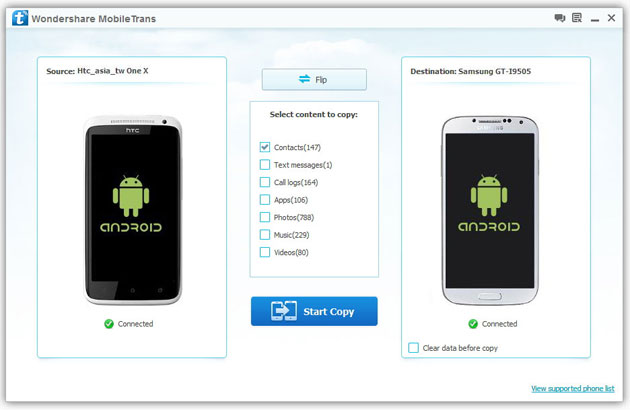
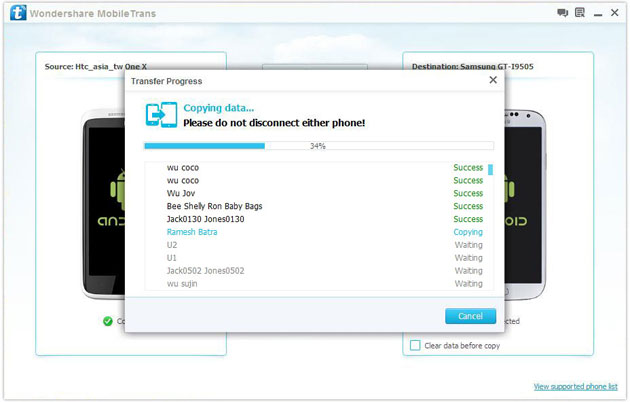
Help! I recently purchased a Samsung S3 and want to transfer SIM and phone contacts from HTC Desire to Samsung S3. However, I have to use a new Mini-SIM with the S3 and I can’t put my old SIM in the phone. Is there an easy way to complete this task? Actually, if you want to cope HTC contacts to Samsung, like Samsung S3, you don't have to insert the old SIM card or edit the phone numbers one by one on your Samsung S3. With the help with Phone to Phone Transfer tool, you can transfer all your contacts including the ones in Gmail, How to Transfer Photos from iPhone/iPad/iPod to Computer ChatON and other accouts to the Samsung Galaxy S3 with I click. Download Phone to Phone Transfer tool to copy contacts from HTC to Samsung S3. Note: Phone to Phone Transfer works well with Samsung and HTC phones and tables. Check more supported Samsung and HTC phones and tablets and Android OS here. Download, install and run Phone to Phone Transfer on your computer. The primary window pops up like the screenshot shows below. Connect both of HTC phone and Samsung S3 to the computer via USB cables. Then this program will detect the two devices soon as possible. After that, you can see them in the primary window. On the left is your HTC phone, and on the right is Samsung S3. Between the two devices is "Flip", which lets you change the places of the two devices. It needs you can follow the similar steps to transfer contacts from Samsung S3 to HTC phone. If you decide to remove all contacts on your target Samsung S3 to save the being transferred contacts, you just need to tick off "Clear data before copy". Or just keep "Clear data before copy" unchecked if you don't want to delete the contacts. This Phone to Phone Transfer program empowers you to cope contacts, music, videos, SMS, apps, call logs and photos from HTC to Samsung within 1 click. Therefore,How to Transfer PDF to iPhone from Computer with Ease you can choose the data which you want to transfer. If you only want to cope the contacts, please uncheck the other data except contacts and click "Start Copy". You can check the process in the pop-up transfer window. When the contact transfer process comes to an end, please click "OK" button. That's all! More information about Phone to Phone Transfer tool: Zero quality loss & risk-free: everything you transfer is 100% same as the original and can be only read by yourself. How to cope contacts from HTC to Samsung Galaxy S3 in 1 click
Step 1: Run Phone to Phone Transfer tool
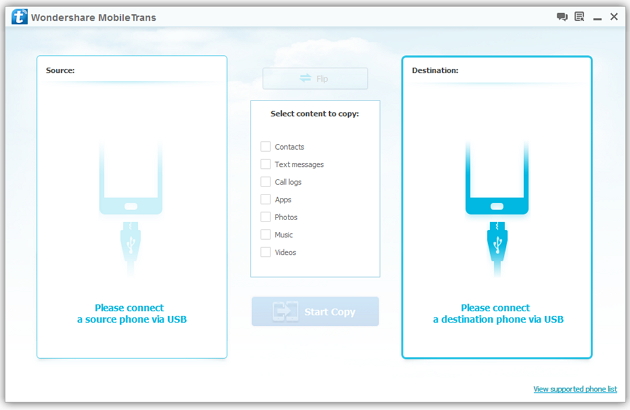
Step 2: Connect your HTC and Samsung S3 to the computer
Step 3: Transfer contacts from THC to Samsung Galaxy S3
2) Not just contacts, transfer SMS, call logs, photos, music, videos and apps*
3) Comprehensive contact copy, including job title, email addresses, company name, etc.
4) Works with over 2,000 phones including Droid, Symbian (Nokia), and all models of iPhones, including new iPhone 5.
5) Transfers content between phones on different networks. AT&T, Verizon, Sprint, T-Mobile - no problem!
How to Transfer Music from Samsung Galaxy to iPhone 6s
Many people, especially youngster, like editing and creating their own songs or music with some useful and fabulous music-editing apps on Samsung smartphone, for instance Galaxy S6/ S6 Edge, Galaxy Note 4. However, if you buy a new iPhone 6s and you want to transfer the edited music from Samsung device to your iPhone 6s, how could you get it done? I guess you will firstly save the songs from Samsung to PC/Mac, then,mobiletrans import the music into iTunes and sync iPhone 6s with iTunes Library. This is exactly a workable solution yet inconvenient. Here is another way helping you to directly transfer music from Samsung devices to iPhone 6s.
TunesGo is a professional tool which supports you to straightforwardly transfer music in between iPhone and Android, iTunes and Android as well as iOS and iOS. Besides, it also enables you to download song tracks from YouTube, manage and organize albums in iTunes.Tutorial about Transferring Music from Samsung to iPhone 6s
Step 1 Download and Install TunesGo
Hit the buttons to download the software on your computer: Windows users click the left button and Mac users the right one. When download finished, set up the program.
Step 2 Plug Samsung and iPhone 6s in the Computer
Run the TunesGo on the computer after installation. Connect both your Android and iOS device to PC/Mac via USB cable.
For Samsung device, you need to enable USB debugging on the phone so as to build the connection.
1) For Android 4.2 or newer: Go to "Settings" > "About Phone" on your Samsung. Press "Build number" for several times until "You are under developer mode". Then enter "Settings" again, and choose "Developer options" > "USB debugging".
2) For Android 3.0 to 4.1: Go to "Settings" > "Developer options" > "USB debugging".
3) For Android 2.3 or earlier: Go to "Settings" > "Applications" > "Development". Check "USB debugging".
When it's connected, you can see it as the below interface.
As for iPhone, you need to tap "Trust" in the phone screen to build the connection.
Step 3 Copy Music from Samsung to iPhone 6s
Click the Samsung device in the left menu and hit the "Music" option under the Samsung panel to open the playlists. All the songs in Samsung Galaxy will be listed in the main window. Select the songs you want to transfer and click the "Export" button. A pop-up box will show you three options, how to transfer candy crush to new iphone hit "Export to iPhone 6s (the name of your iPhone)", the selected music will start transferring from Samsung Galaxy to iPhone 6s. 
More Feature: Manage iTunes Library
TunesGo also works as the iTunes Library manager. With it, you can fix the missing and inaccurate tags and covers of iTunes music. Clean up duplicated songs as well as remove missing tracks.
There are more impressive features on TunesGo waiting for your exploration. Hurry to download it and give it a shot.
How to Recover Deleted Contacts from Water Damaged iPhone 6S
Summary: Do not panic if you lose contacts when your iPhone is water damaged, iPhone Data Recovery can help you recover deleted contacts from water damaged iPhone 6S . As we all know, letters for contacting and communication has withdrew from our life for many years. With the rapid development of science and technology in the modern society, we are in favor of iPhone 6S and always enjoy the convince that mobile phone bring to us, as long as you have someone’s contact number, you can take up your iPhone 6S to click his contact number and begin to talk to him or her, no matter how far this people is from you. As a result, it is obvious that contacts are very necessary to store in your device and so we do. I bet nowadays, no one will be so “hard working” to write the contacts down on the notebook,How to Transfer Music from Android to Another Android because that is really troublesome and inconvenient. Everyone are used to directly store the contacts in iPhone 6S. Here, sometimes unavoidably, trouble comes to you, especially the device is really waterproof as some other electronic products, such as Tank007 flashlights IP68. I mean, it often occurs that our iPhone 6S are water damaged when we bend down in the bathroom, when we go walking along a small river, when we wash our hands in the kitchen, etc. And then you will be crazy about the following results. All the contacts in your device are lost, including your sweetheart’s, your families’, your best friends’, your important customers’, your colleagues’, etc. “Oh, my god, what a big loss caused by an small accident! Shit!” Ok, good guy, If you are just keeping sad and annoyed about that, than you can only be regretful; But if you come to us, then all this messy condition can be solved with an amazing tool from us—-iPhone Data Recovery. This tool is absolutely multi-functional and perfect choice for you to save your loss, such as contacts, messages, photos, videos, call history, notes, reminders, bookmarks, music, documents, etc. Do not think that this can just be believable in magic suppositional world, or just think I am fooling you around. You may think how can it recover something that doesn’t exist in your device any more. No, not exactly. Let me explain to you. In fact, your iPhone 6S data have not truly get away from your device, but secretly hidden in some invisible place. What you need to do for recovery is to draw support from outside tool to scan your device and find them out. How to Recover Deleted Contacts from Water Damaged iPhone 6S Step 1: Take up seconds to download iPhone Data Recovery and set up this software system in your computer. Then your device need to be connected to computer by USB cable.
Ok, let me tell you how you can make it!
Step 2: Focus on your iPhone 6S device and choose ”Recover”, then all the categories of your device turn up.
Step 3: Choose “ Contacts “ category, How to Manage iTunes Transfer Easily then click the “Scan “ buttom to scan all your contacts.
Step 4: Carefully selecting the contacts which you think are essential and want to be get back.
Now you can see the surprise. So in the future, no matter how many contacts you have stored in the iPhone 6S and unfortunately your device are water damaged, just follow my above step, then you can be completely satisfied and feel happy again.