




















Trending Topics


Expensive original iPhone Or Cheap Factory Unlocked Original iPhone 5/ 5S Refurbished Phone?
As we all know, the Apple iPhone is rather expensive, and the quality is very good. Now there are some iPhone refurbished phones with the prices much lower than the former. What is your choice? Original iPhone 5 WCDMA 16GB Refurbished phone, $189.99;
Original iPhone 5S WCDMA 16GB Refurbished phone, $206.99;

Thinking of moving from iPhone to Galaxy S26 Ultra this year
It has been 5 years since I started using an iPhone, but I am really impressed with the AI features and the camera of the Samsung Galaxy S26 Ultra. The display and zoom also seem much better for media and travel photos. I am thinking of buying it. Is switching from iPhone to Samsung actually worth it?
Buy iPhone 17 now or wait for the iPhone 18?
Tim Cook stepping down and Jonn Ternus taking over in September. Some are expecting the iPhone 18 to get a massive redesign. Is it worth waiting 5 months for it, or should I buy the iPhone 17 now?

Need Advice on which Phone to buy
Hi, I have been an IPhone user for almost 5 years now and I have got comfortable with the device and interface. I am looking to upgrade my I Phone 4S to a higher end phone which will serve my business needs. I mainly use the following applications While Iphones would be my first choice, I am open to looking at other mobiles. The shortlisted phones are i phone 6, Samsung S6 edge, Note 4 and One Plus one. While my interia from changing from apple is mainly due to comfort level and having a mac and ipads at home. Kindly suggest as i am really confused.

Best 5G Smartphone in India 2021
1. APPLE IPHONE 12 2. ONEPLUS 8 PRO 3. SAMSUNG GALAXY NOTE20 ULTRA 4. XIAOMI MI 10 5. ONEPLUS NORD

Mobile Professional Reviews--Oppo R5 review
Oppo's R5 is a seriously gorgeous phone. Clad in metal, it's super-thin -- just 4.85mm (0.19 inches) deep, and it weighs a scant 155 grams (5.5 ounces). It's certainly impressive, but this comes at the loss of the 3.5mm audio jack, so you'll have to use Bluetooth headphones if you want to listen to music. For Android fans envious of the iPhone 6 's slim frame, well, look no further. The R5's ultra-slim body beats the iPhone handily, and will draw envious stares from other Android owners as well. But slimness isn't all that great without the performance to back it up, and this is where the phone falters. It's oftentimes sluggish, and the camera takes forever to start up. The phone's thin frame also doesn't help with the heat and it can get uncomfortably hot at times. Oppo hasn't yet revealed exact dates for the phone's availability, but the Chinese company intends to sell it globally, either through its online store or working in partnership with local distributors. What I do know is that there will be three versions due to the different LTE bands -- one for the US, one for China and one for the rest of the world. Price wise, the R5 will be sold at $449, which converts to roughly £310. It will also come unlocked, so you'll be able to use the phone on 3G mostly everywhere. The R5 is encased in metal -- with a hand-polished steel frame and, on the back, brushed aluminum. This gives the phone a premium feel that you'd expect from a more expensive device. The two-tone color scheme (either white and silver or white and gold) at the back does draw comparisons to Apple's iPhone designs, but the shape of the phone is much more angular. Despite being thinner, it doesn't feel as slippery as the iPhone. One downside to the thin frame of the phone is that the rear 13-megapixel sticks out, much like Apple's iPhone. However, unlike the small bump of the iPhone 6, the R5's rear camera pops out a fair way, enough that it makes the phone uneven when placed on a flat surface. The R5 sports a 5.2-inch AMOLED display, with a full HD resolution of 1,920x1,080 pixels. The screen is bright and sharp, while colors were vibrant. I do have issues with the auto-brightness settings of the phone -- it can sometimes be too dim. Like most Chinese-made smartphones, the R5 sports physical home, menu and back keys. I'm not a fan of physical keys since I feel software keys are better to interact with -- you can (depending on the OS) switch the back button to either the left or right position. The volume and power keys are on the right side, with the micro-USB port at the bottom. As mentioned earlier, there's no 3.5mm audio jack. Oppo's R5 is powered by an octa-core 1.5GHz Qualcomm Snapdragon 615 processor, and in theory, should have enough juice to power the phone. But my experience with the device was less than satisfactory: at times the phone would pause between switching apps, for example. I reckon a software update could fix this, and I will update the review if it does. The phone packs 2GB of RAM, 16GB of onboard storage and a 2,000mAh battery. There's no microSD card slot to expand that storage, which limits the number of apps you can install and the number of tunes and movies you can keep onboard. The phone is powered by Android 4.4 KitKat -- not the latest 5.0 Lollipop -- with Oppo's custom ColorOS UI on top. The software is very much improved from the company's first version, How to move apps from an old iPhone to a new iPhone though it looks similar. For one, it's much flatter.
See a phone that's less than 5mm thick, How to Transfer Playlist from iTunes to iPhone with Data Remained the... See full gallery 

How to Transfer Contacts from HTC to Samsung
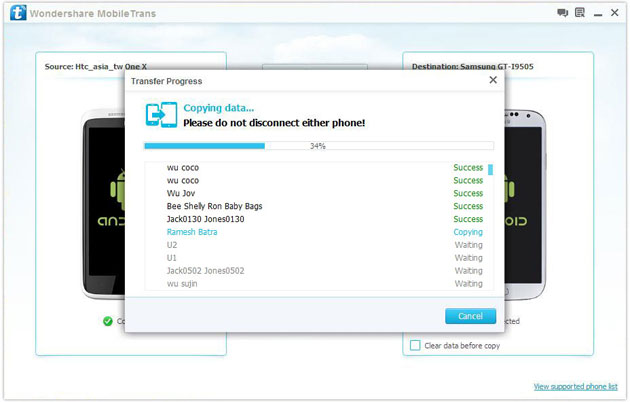
Help! I recently purchased a Samsung S3 and want to transfer SIM and phone contacts from HTC Desire to Samsung S3. However, I have to use a new Mini-SIM with the S3 and I can’t put my old SIM in the phone. Is there an easy way to complete this task? Actually, if you want to cope HTC contacts to Samsung, like Samsung S3, you don't have to insert the old SIM card or edit the phone numbers one by one on your Samsung S3. With the help with Phone to Phone Transfer tool, you can transfer all your contacts including the ones in Gmail, How to Transfer Photos from iPhone/iPad/iPod to Computer ChatON and other accouts to the Samsung Galaxy S3 with I click. Download Phone to Phone Transfer tool to copy contacts from HTC to Samsung S3. Note: Phone to Phone Transfer works well with Samsung and HTC phones and tables. Check more supported Samsung and HTC phones and tablets and Android OS here. Download, install and run Phone to Phone Transfer on your computer. The primary window pops up like the screenshot shows below. Connect both of HTC phone and Samsung S3 to the computer via USB cables. Then this program will detect the two devices soon as possible. After that, you can see them in the primary window. On the left is your HTC phone, and on the right is Samsung S3. Between the two devices is "Flip", which lets you change the places of the two devices. It needs you can follow the similar steps to transfer contacts from Samsung S3 to HTC phone. If you decide to remove all contacts on your target Samsung S3 to save the being transferred contacts, you just need to tick off "Clear data before copy". Or just keep "Clear data before copy" unchecked if you don't want to delete the contacts. This Phone to Phone Transfer program empowers you to cope contacts, music, videos, SMS, apps, call logs and photos from HTC to Samsung within 1 click. Therefore,How to Transfer PDF to iPhone from Computer with Ease you can choose the data which you want to transfer. If you only want to cope the contacts, please uncheck the other data except contacts and click "Start Copy". You can check the process in the pop-up transfer window. When the contact transfer process comes to an end, please click "OK" button. That's all! More information about Phone to Phone Transfer tool: Zero quality loss & risk-free: everything you transfer is 100% same as the original and can be only read by yourself. How to cope contacts from HTC to Samsung Galaxy S3 in 1 click
Step 1: Run Phone to Phone Transfer tool
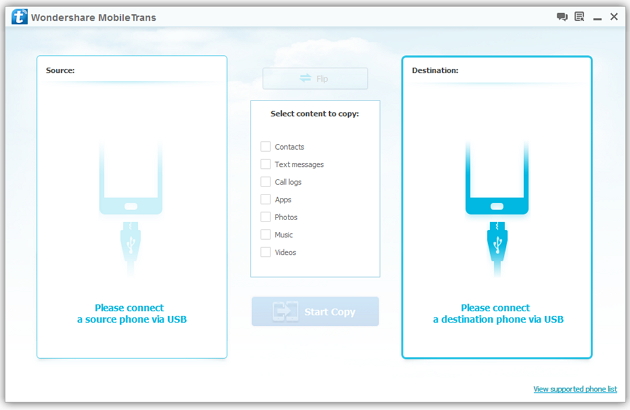
Step 2: Connect your HTC and Samsung S3 to the computer
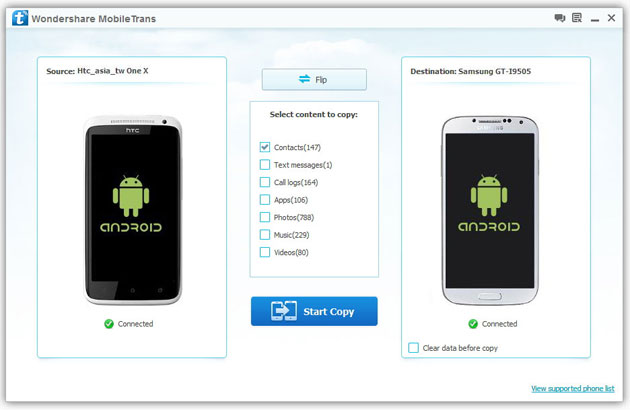
Step 3: Transfer contacts from THC to Samsung Galaxy S3
2) Not just contacts, transfer SMS, call logs, photos, music, videos and apps*
3) Comprehensive contact copy, including job title, email addresses, company name, etc.
4) Works with over 2,000 phones including Droid, Symbian (Nokia), and all models of iPhones, including new iPhone 5.
5) Transfers content between phones on different networks. AT&T, Verizon, Sprint, T-Mobile - no problem!
How to Transfer Contact from iPhone to Computer - iPhone Contact Transfer
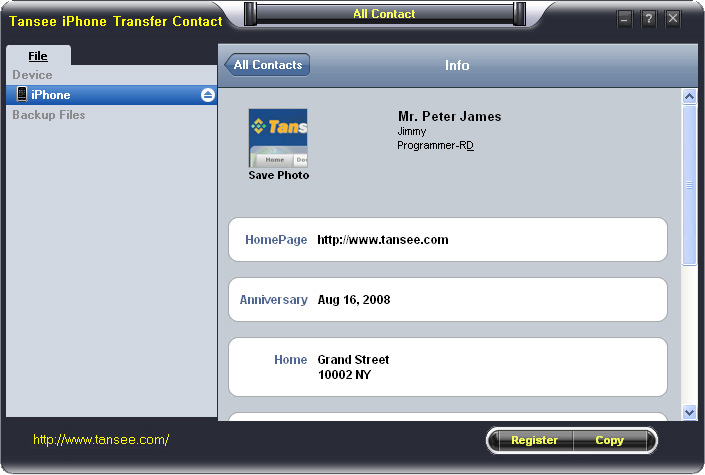
iPhone Transfer Contact can provide you: Tutorial 1: Transfer Contact from iPhone to Computer Tutorial 2: Transfer Contact’s photo from iPhone to Computer Tutorial 3: Restore Contact from CSV file to Outlook Tutorial 4: Restore Contact from CSV file to iPhone Step 2: Connect your iPhone to your computer, mobiletrans and run iPhone Transfer Contact. Then, your contacts on iPhone memory will display as shown in your iPhone screen automatically as fig 1. You can click on single name, all his or her information will display as fig 2 shown.
- Backup iPhone Contact’s Photos.
- Export two types of file format (Antc file, Text file).
- Export full screen of iPhone contact’s Photos.
- View Contacts in Text file format (.txt) or ANTC file format (.antc) on PC.
- Password protection support (ANTC file only).
Tutorial 1: How to transfer contact from iPhone to computer
Step 1: You can download iPhone Transfer Contact free version here, and install the software (skip if done yet).
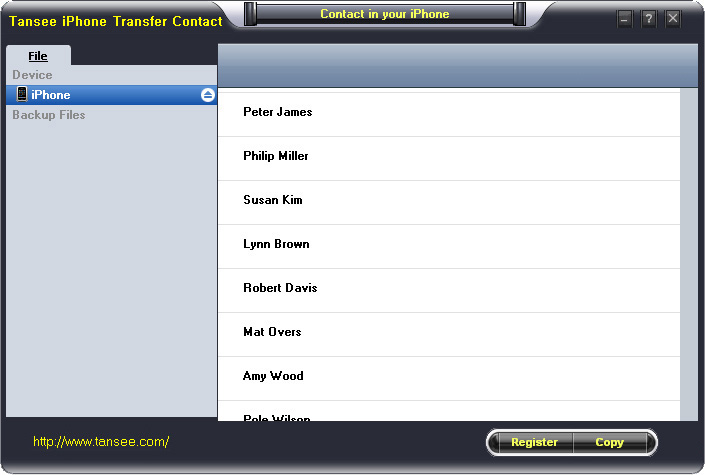
Step 3-a: In fig 1 situation, click button "Copy" to copy all contacts from your iPhone to your computer , then select options:
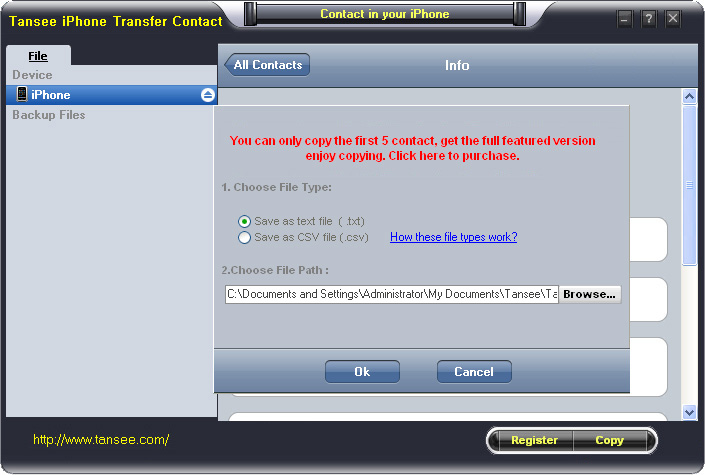
1: Choose File Type: backup to TXT file, ANTC file or CSV file;
2: Choose File Path: You also can change the backup path if you don’t use default path.
3: Advanced Option: if you choose ANTC format in step 1, you can add a password to protect the file.
Note: You must remember your password, because we don’t know the it except yourself. So please remember it well.
Click "OK" Button to finish the Copy. Please see fig 3.
Note: With trail version, you can only copy the first 5 contacts .

1: Choose File Type: Backup contacts to TXT file, and CSV file in single contact transfer;
2: Choose File Path: You can change the backup path if you do not use default path;
3: Advanced Option: Disabled in single contact transfer.
Click OK Button to finish the Copy. See fig 4.
Note: You can only copy the first 5 contacts in trail version.
Tutorial 2: How to transfer iPhone contact’s photo to computer?
In fig 2 above, you can click the photo of single person to save it to your computer., then you can transfer iPhone contact’s photo to computer. See fig 5.

Tutorial: 3:How to restore contact from CSV file to outlook?
Step 1: Backup all your contacts from iPhone to computer as .csv file format using iPhone Transfer Contact.
Step 2: Click on Start - All Programs - Accessories, click to open Address Book.
In Address Book, click File - Import - Other Address Book..., select "Text File (Comma Separated Values)", click Import, then browser the CSV file, click Next, Map the fields you wish to import, click finish.After all this, you had import the contacts to your Windows Address Book.
Step 3: Open Outlook; Open the File menu; Choose “Import and Export”; In the “Import and Export Wizard” dialog box choose “Import Internet email and address", then choose "OUTLOOK EXPRESS 4.X 5.X 6.X", click "Next".
Tutorial 4: How to restore contact from CSV file to iPhone?
Step 1: Backup all your iPhone contacts computer as .csv file format using iPhone Transfer Contact.
Step 2: Click on Start - All Programs - Accessories, click to open Address Book.
In Address Book, click File - Import - Other Address Book..., select "Text File (Comma Separated Values)", click Import, then browser the CSV file, click Next, Map the fields you wish to import, click finish.After all this,how to use anytrans you had import the contacts to your Windows Address Book.
Step 3: Open iTunes, connect iPhone, click to select the iPhone on iTunes, choose Info tab, in Contact section, check "Sync contacts with Window Address Book", click apply. Back To Homepage.

Samsung Galaxy Note 9 problems
I am a Samsung Note fan. Owned Note 2, Note 5 and now Note 9. However every time I faced one distinct problem of display getting burnt or blurred. Now with Note 9 after upgrading with Android 10, I started facing major display problem. I had to get display replaced and paid Rs 17000/- at Samsung Service Center.
Now I am planning to shift to iPhone as it costs same but with no problems.

Which to buy Lenovo p70 or Samsung a3
Hi I have been using iPhone 5 since 2.5 years and now as the battery doesn't last I want to buy an android but all phones after iPhone seem so big. I wanted to go for Lenovo p70 for battery and specs but then I came across an almost duplicate iPhone ie Samsung Galaxy a3 please help fast