






















Trending Topics

I want to buy smart phone under 25k. Suggestion please
Hello Guys!! Greetings!! I am Actually looking for Android phone under 25k, I am planning to buy Samsung Note 3 Neo.. howz this phone?? and how about Samsung galaxy Alpha, Sony xperia Z1, Nexus 5 ?? or any other Good phone?? Please suggest.. Thanks & Regards.

How to Transfer Contacts from HTC to Samsung
Help! I recently purchased a Samsung S3 and want to transfer SIM and phone contacts from HTC Desire to Samsung S3. However, I have to use a new Mini-SIM with the S3 and I can’t put my old SIM in the phone. Is there an easy way to complete this task? Actually, if you want to cope HTC contacts to Samsung, like Samsung S3, you don't have to insert the old SIM card or edit the phone numbers one by one on your Samsung S3. With the help with Phone to Phone Transfer tool, you can transfer all your contacts including the ones in Gmail, How to Transfer Photos from iPhone/iPad/iPod to Computer ChatON and other accouts to the Samsung Galaxy S3 with I click. Download Phone to Phone Transfer tool to copy contacts from HTC to Samsung S3. Note: Phone to Phone Transfer works well with Samsung and HTC phones and tables. Check more supported Samsung and HTC phones and tablets and Android OS here. Download, install and run Phone to Phone Transfer on your computer. The primary window pops up like the screenshot shows below. Connect both of HTC phone and Samsung S3 to the computer via USB cables. Then this program will detect the two devices soon as possible. After that, you can see them in the primary window. On the left is your HTC phone, and on the right is Samsung S3. Between the two devices is "Flip", which lets you change the places of the two devices. It needs you can follow the similar steps to transfer contacts from Samsung S3 to HTC phone. If you decide to remove all contacts on your target Samsung S3 to save the being transferred contacts, you just need to tick off "Clear data before copy". Or just keep "Clear data before copy" unchecked if you don't want to delete the contacts. This Phone to Phone Transfer program empowers you to cope contacts, music, videos, SMS, apps, call logs and photos from HTC to Samsung within 1 click. Therefore,How to Transfer PDF to iPhone from Computer with Ease you can choose the data which you want to transfer. If you only want to cope the contacts, please uncheck the other data except contacts and click "Start Copy". You can check the process in the pop-up transfer window. When the contact transfer process comes to an end, please click "OK" button. That's all! More information about Phone to Phone Transfer tool: Zero quality loss & risk-free: everything you transfer is 100% same as the original and can be only read by yourself. 

How to cope contacts from HTC to Samsung Galaxy S3 in 1 click
Step 1: Run Phone to Phone Transfer tool
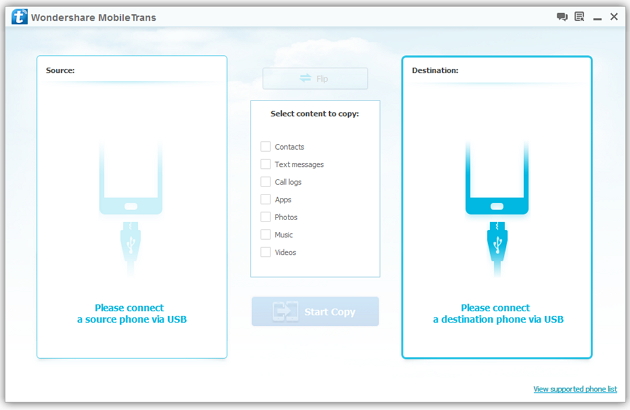
Step 2: Connect your HTC and Samsung S3 to the computer
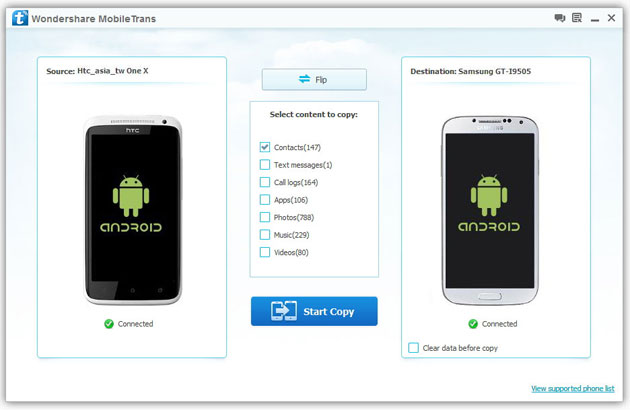
Step 3: Transfer contacts from THC to Samsung Galaxy S3
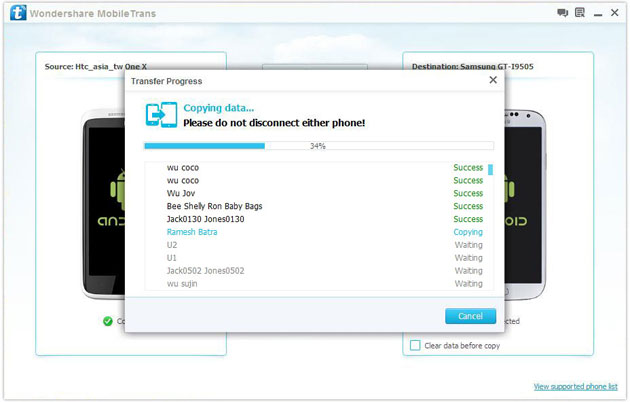
2) Not just contacts, transfer SMS, call logs, photos, music, videos and apps*
3) Comprehensive contact copy, including job title, email addresses, company name, etc.
4) Works with over 2,000 phones including Droid, Symbian (Nokia), and all models of iPhones, including new iPhone 5.
5) Transfers content between phones on different networks. AT&T, Verizon, Sprint, T-Mobile - no problem!
How to Transfer Music from Samsung Galaxy to iPhone 6s
Many people, especially youngster, like editing and creating their own songs or music with some useful and fabulous music-editing apps on Samsung smartphone, for instance Galaxy S6/ S6 Edge, Galaxy Note 4. However, if you buy a new iPhone 6s and you want to transfer the edited music from Samsung device to your iPhone 6s, how could you get it done? I guess you will firstly save the songs from Samsung to PC/Mac, then,mobiletrans import the music into iTunes and sync iPhone 6s with iTunes Library. This is exactly a workable solution yet inconvenient. Here is another way helping you to directly transfer music from Samsung devices to iPhone 6s.
TunesGo is a professional tool which supports you to straightforwardly transfer music in between iPhone and Android, iTunes and Android as well as iOS and iOS. Besides, it also enables you to download song tracks from YouTube, manage and organize albums in iTunes.Tutorial about Transferring Music from Samsung to iPhone 6s
Step 1 Download and Install TunesGo
Hit the buttons to download the software on your computer: Windows users click the left button and Mac users the right one. When download finished, set up the program.
Step 2 Plug Samsung and iPhone 6s in the Computer
Run the TunesGo on the computer after installation. Connect both your Android and iOS device to PC/Mac via USB cable.
For Samsung device, you need to enable USB debugging on the phone so as to build the connection.
1) For Android 4.2 or newer: Go to "Settings" > "About Phone" on your Samsung. Press "Build number" for several times until "You are under developer mode". Then enter "Settings" again, and choose "Developer options" > "USB debugging".
2) For Android 3.0 to 4.1: Go to "Settings" > "Developer options" > "USB debugging".
3) For Android 2.3 or earlier: Go to "Settings" > "Applications" > "Development". Check "USB debugging".
When it's connected, you can see it as the below interface.
As for iPhone, you need to tap "Trust" in the phone screen to build the connection.
Step 3 Copy Music from Samsung to iPhone 6s
Click the Samsung device in the left menu and hit the "Music" option under the Samsung panel to open the playlists. All the songs in Samsung Galaxy will be listed in the main window. Select the songs you want to transfer and click the "Export" button. A pop-up box will show you three options, how to transfer candy crush to new iphone hit "Export to iPhone 6s (the name of your iPhone)", the selected music will start transferring from Samsung Galaxy to iPhone 6s. 
More Feature: Manage iTunes Library
TunesGo also works as the iTunes Library manager. With it, you can fix the missing and inaccurate tags and covers of iTunes music. Clean up duplicated songs as well as remove missing tracks.
There are more impressive features on TunesGo waiting for your exploration. Hurry to download it and give it a shot.

How to Transfer Contacts from HTC/LG to Note 5
The Samsung Galaxy Note 5 brings a huge redesign to the Note series: it adopts the glass and metal styling of the Galaxy S6, but in a larger, 5.7" form factor, and it features the signature S Pen stylus. The Note 5 sports the 14nm Exynos 7420 octa-core system chip with a whopping 4GB of LPDDR4 RAM.
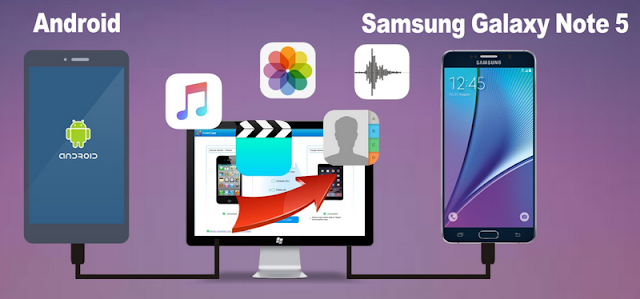
So, when you got a new samsung galaxy note 5, you may want to sync those important coantacts from your old HTC/LG to samsung galaxy note 5, how can i transfer contacts from htc/lg to samsung note 5?
Mobile Transfer can solve the problem to transfer contacts from LG/HTC to Samsung Galaxy Note 5, what's more, mobile transfer can also transfer text messages, videos, photos, call logs, calendar, music from htc/lg to samsung galaxy note 5.
You need three easy steps to transfer contacdts from lg/htc to samsung galaxy note 5:
Step 1: Download and install the Mobile Transfer on your computer
Step 2: Connect both your htc/lg and samsung note 5 to the pc
Step 3: Select contacts and transfer them to note 5
More steps details:
How to Transfer Contacts from HTC/LG/Sony/Huawei to Note 5
How to Recover Lost Data from Note 5