






















Trending Topics
Computer monitors v/s computer glasses v/s computer screen for less eye strain
With the present scenario, online education seems to be the for keeps for a long time. Wanted to know devices, gadgets for children and adults for minimum eye strain.
I researched a little. There are are a few monitors Available like Asus, benq, and viewsonic. There are also 3M glare screen and special computer glasses for less eye strain.
now my question is the price difference is huge between the asus monitor screen and the computer glasses and the 3M screen but which is most effective in reducing the eye strain. Your advice is crucial
Win Computer Components & Letv Smartphone
https://giveaways.couponhaat.in/giveaways/win-a-free-leeco-le-1s-eco/?lucky=121897
http://woobox.com/sp8sbm/hczq6f
i want to connect my led tv as my computer monitor. my cpu as vga port but my led tv doesnot.
i want to connect my led tv as my computer monitor. my cpu as vga port but my led tv doenot. Â i have 3 options
1) using vga to hdmi
2) using vga to av
3) using vga to component.
which one will be preferable and cheap.

How to Transfer Contact from iPhone to Computer - iPhone Contact Transfer
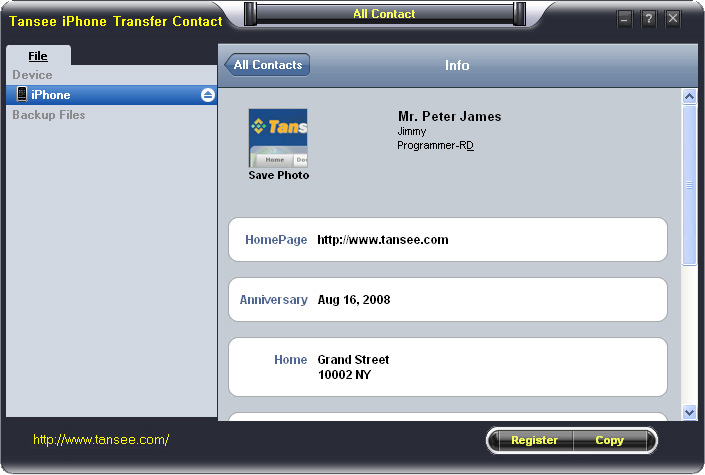
iPhone Transfer Contact can provide you: Tutorial 1: Transfer Contact from iPhone to Computer Tutorial 2: Transfer Contact’s photo from iPhone to Computer Tutorial 3: Restore Contact from CSV file to Outlook Tutorial 4: Restore Contact from CSV file to iPhone Step 2: Connect your iPhone to your computer, mobiletrans and run iPhone Transfer Contact. Then, your contacts on iPhone memory will display as shown in your iPhone screen automatically as fig 1. You can click on single name, all his or her information will display as fig 2 shown.
- Backup iPhone Contact’s Photos.
- Export two types of file format (Antc file, Text file).
- Export full screen of iPhone contact’s Photos.
- View Contacts in Text file format (.txt) or ANTC file format (.antc) on PC.
- Password protection support (ANTC file only).
Tutorial 1: How to transfer contact from iPhone to computer
Step 1: You can download iPhone Transfer Contact free version here, and install the software (skip if done yet). 

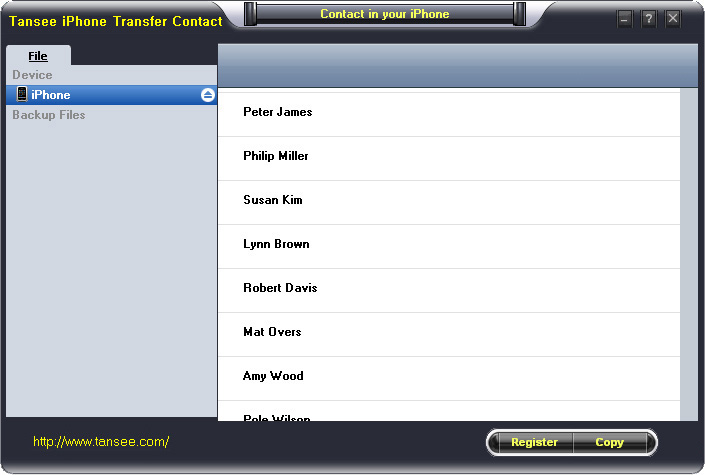
Step 3-a: In fig 1 situation, click button "Copy" to copy all contacts from your iPhone to your computer , then select options:
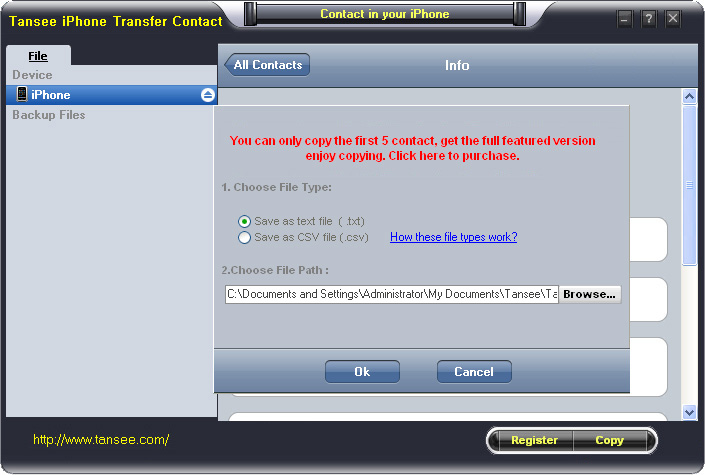
1: Choose File Type: backup to TXT file, ANTC file or CSV file;
2: Choose File Path: You also can change the backup path if you don’t use default path.
3: Advanced Option: if you choose ANTC format in step 1, you can add a password to protect the file.
Note: You must remember your password, because we don’t know the it except yourself. So please remember it well.
Click "OK" Button to finish the Copy. Please see fig 3.
Note: With trail version, you can only copy the first 5 contacts .

1: Choose File Type: Backup contacts to TXT file, and CSV file in single contact transfer;
2: Choose File Path: You can change the backup path if you do not use default path;
3: Advanced Option: Disabled in single contact transfer.
Click OK Button to finish the Copy. See fig 4.
Note: You can only copy the first 5 contacts in trail version.
Tutorial 2: How to transfer iPhone contact’s photo to computer?
In fig 2 above, you can click the photo of single person to save it to your computer., then you can transfer iPhone contact’s photo to computer. See fig 5.

Tutorial: 3:How to restore contact from CSV file to outlook?
Step 1: Backup all your contacts from iPhone to computer as .csv file format using iPhone Transfer Contact.
Step 2: Click on Start - All Programs - Accessories, click to open Address Book.
In Address Book, click File - Import - Other Address Book..., select "Text File (Comma Separated Values)", click Import, then browser the CSV file, click Next, Map the fields you wish to import, click finish.After all this, you had import the contacts to your Windows Address Book.
Step 3: Open Outlook; Open the File menu; Choose “Import and Export”; In the “Import and Export Wizard” dialog box choose “Import Internet email and address", then choose "OUTLOOK EXPRESS 4.X 5.X 6.X", click "Next".
Tutorial 4: How to restore contact from CSV file to iPhone?
Step 1: Backup all your iPhone contacts computer as .csv file format using iPhone Transfer Contact.
Step 2: Click on Start - All Programs - Accessories, click to open Address Book.
In Address Book, click File - Import - Other Address Book..., select "Text File (Comma Separated Values)", click Import, then browser the CSV file, click Next, Map the fields you wish to import, click finish.After all this,how to use anytrans you had import the contacts to your Windows Address Book.
Step 3: Open iTunes, connect iPhone, click to select the iPhone on iTunes, choose Info tab, in Contact section, check "Sync contacts with Window Address Book", click apply. Back To Homepage.

Do software updates arrive automatically on Galaxy Z Flip8?
I’ve been using my Galaxy Z Flip8 for a while and was wondering how Samsung handles software updates. Do they automatically show up on the phone, or do I need to connect it to a computer?
Does Samsung Kies still work with newer Galaxy phones?
I came across Samsung Kies while looking for ways to manage Samsung devices from a computer. I remember it being used for older Galaxy phones, so I was wondering if anyone still uses it with newer devices like the Galaxy Z Flip8.

Could Quantum Computing Become Crypto’s Biggest Security Challenge?
Quantum computing is becoming a growing concern for blockchain security because sufficiently powerful quantum machines could eventually undermine some of the cryptography used by networks such as Bitcoin and Ethereum. European financial supervisors recently warned that the threat could emerge before quantum computing becomes commercially viable. Researchers have also reduced estimates of the resources required for parts of a future quantum attack, although no existing computer can break Bitcoin or Ethereum today. The challenge is that migrating major blockchains to quantum-resistant cryptography would require years of development and broad network agreement. Should crypto developers start treating quantum resistance as a priority now?
The Quantum Computing Threat to Crypto
Quantum computing is still developing, but its potential to solve certain problems far faster than conventional computers has raised concerns about the long-term security of cryptographic systems used across crypto. A sufficiently powerful quantum computer could potentially threaten some existing wallet and blockchain security mechanisms. The technology may still be years away from posing a practical threat, but preparing for it could take time. Should the crypto industry start preparing for the quantum era now, or is the threat still too distant?

India's space sector gets cybersecurity boost as CERT-In, SIA-India release joint guidelines
The Indian Computer Emergency Response Team (CERT-In) and the Satcom Industry Association of India (SIA-India) have jointly released cybersecurity guidelines for securing the space.

NVIDIA and Microsoft Are Betting Big on Personal AI PC
Devices like RTX Spark suggest a future where more AI tasks run directly on your computer instead of relying entirely on cloud services.

Microsoft Office error
while installing Microsoft Office On my Windows 10 laptop the installation got stuck at 90% with an error message or error code 0x80041015, tried some online methods from random websites but failed to get rid of this. After this Not able to Access Microsoft Office applications like Excel, Word, PowerPoint and Outlook. How to repair or fix my computer?

How To disable write protection in SD card or Pendrive using cmd
Sometimes Its Necessery to disable write protection then learn here... 1.Connect your write protected SD card to your computer and 2.Start Command Prompt (Admin).
3.Click Yes in the UAC message.
4.Type diskpart and open it(click On Enter).
5.Type list disk and open it. (there, we’ll able to see a list of storage media connected to your computer like your internal hard drive, SSD, pen drive, or SD card via an adapter).
6.Type select disk . (Make sure you enter the number correctly and don’t end up changing the attributes of your internal hard drive or any other storage media).
7.Type attributes disk clear readonly and Hit Enter.
8.Type exit and press Enter to get out of the diskpart utility.
9.Type exit and press Enter again to get out of the command line.
How to Recover Data from Hard Drive
“Yesterday, I formatted my hard drive on my computer to erase virus from my computer, but forgot to backup some important files, can I recover them? There are some precious photos, Excel documents, etc. they are important to me. How to recover lost files from hard drive?”—Jessica When we are using our computer, we may lose files due to various reasons, formatting in one of the reasons. So, can we recover deleted files from hard drive? This article will show you the solution. In fact, the system on the hard drive does not erase the deleted files immediately after you deleted the files from your computer, the deleted files are still on your computer, but inaccessible to general users, and the space they occupy is labeled as free to use. So, as long as the deleted data are not overwritten by new files, How to copy Message from iPhone to iPhone/ from android to android you get a chance to restore them. The tool you need is the Data Recovery. Data Recovery is a professional tool to recover files from hard drive, USB drive, SD card, and other storage devices. With the help of this tool, you can easily restore deleted files from your HDD. This program provides four recovery modes to restore lost data, below is the guide. Firstly, download the data recovery tool as per your computer’s OS. Mac and Windows versions are available here. After you install the Data Recovery for hard drive, run it. You can see four recovery modes in the home window. You are recommended to try the first mode first for it can fast recover lost data. This mode will carry out a quick scan to find the deleted files on your hard drive and recover them with the original file names. Next, select the disk you lost files to scan. All disks including the external drives will be listed in the window. If you are trying to recover data from external hard drive, connect the drive to your computer before run this program, pc to android file transfer software or hit Refresh drives if the drive is not displayed. After the scan, you will see all recoverable files displayed in the left sidebar, open the folders to check the files you need. You can preview images, and documents. Select the files you need and click Recover to save the recovered files to your computer. Note: Do not save the recovered files to the disk where you lost data, or, it may overwrite some delete data on the disk. Guide on Recovering Deleted Data from Hard Drive
Step 1. Choose a data recovery mode
Step 2. Select disk to scan
Step 3. Recover deleted data from hard drive
How to Transfer Contacts from HTC to Samsung
Help! I recently purchased a Samsung S3 and want to transfer SIM and phone contacts from HTC Desire to Samsung S3. However, I have to use a new Mini-SIM with the S3 and I can’t put my old SIM in the phone. Is there an easy way to complete this task? Actually, if you want to cope HTC contacts to Samsung, like Samsung S3, you don't have to insert the old SIM card or edit the phone numbers one by one on your Samsung S3. With the help with Phone to Phone Transfer tool, you can transfer all your contacts including the ones in Gmail, How to Transfer Photos from iPhone/iPad/iPod to Computer ChatON and other accouts to the Samsung Galaxy S3 with I click. Download Phone to Phone Transfer tool to copy contacts from HTC to Samsung S3. Note: Phone to Phone Transfer works well with Samsung and HTC phones and tables. Check more supported Samsung and HTC phones and tablets and Android OS here. Download, install and run Phone to Phone Transfer on your computer. The primary window pops up like the screenshot shows below. Connect both of HTC phone and Samsung S3 to the computer via USB cables. Then this program will detect the two devices soon as possible. After that, you can see them in the primary window. On the left is your HTC phone, and on the right is Samsung S3. Between the two devices is "Flip", which lets you change the places of the two devices. It needs you can follow the similar steps to transfer contacts from Samsung S3 to HTC phone. If you decide to remove all contacts on your target Samsung S3 to save the being transferred contacts, you just need to tick off "Clear data before copy". Or just keep "Clear data before copy" unchecked if you don't want to delete the contacts. This Phone to Phone Transfer program empowers you to cope contacts, music, videos, SMS, apps, call logs and photos from HTC to Samsung within 1 click. Therefore,How to Transfer PDF to iPhone from Computer with Ease you can choose the data which you want to transfer. If you only want to cope the contacts, please uncheck the other data except contacts and click "Start Copy". You can check the process in the pop-up transfer window. When the contact transfer process comes to an end, please click "OK" button. That's all! More information about Phone to Phone Transfer tool: Zero quality loss & risk-free: everything you transfer is 100% same as the original and can be only read by yourself. How to cope contacts from HTC to Samsung Galaxy S3 in 1 click
Step 1: Run Phone to Phone Transfer tool
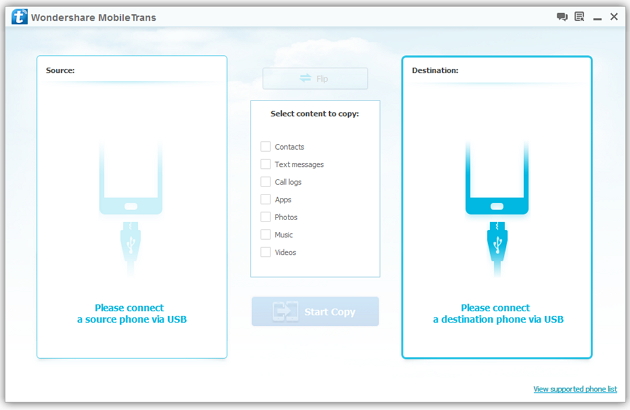
Step 2: Connect your HTC and Samsung S3 to the computer
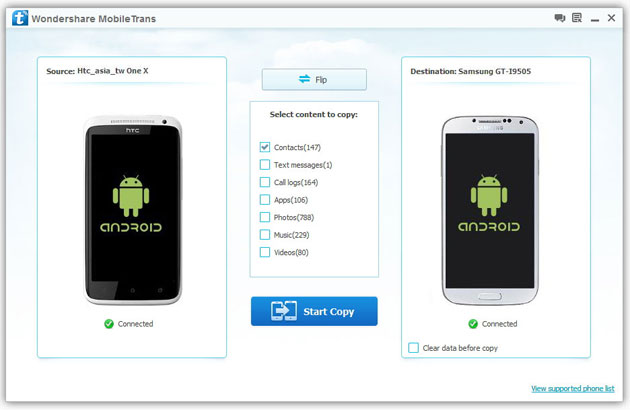
Step 3: Transfer contacts from THC to Samsung Galaxy S3
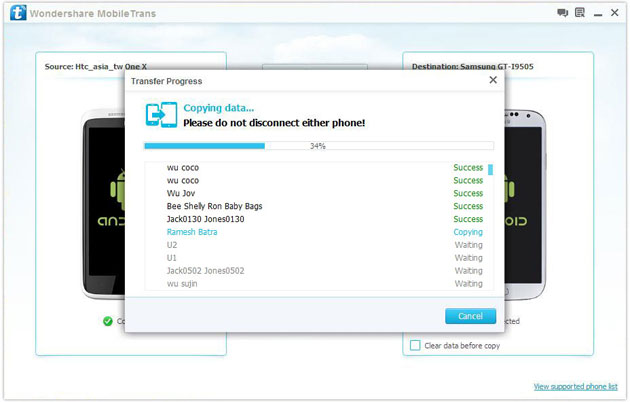
2) Not just contacts, transfer SMS, call logs, photos, music, videos and apps*
3) Comprehensive contact copy, including job title, email addresses, company name, etc.
4) Works with over 2,000 phones including Droid, Symbian (Nokia), and all models of iPhones, including new iPhone 5.
5) Transfers content between phones on different networks. AT&T, Verizon, Sprint, T-Mobile - no problem!
How to Transfer Music from Samsung Galaxy to iPhone 6s
Many people, especially youngster, like editing and creating their own songs or music with some useful and fabulous music-editing apps on Samsung smartphone, for instance Galaxy S6/ S6 Edge, Galaxy Note 4. However, if you buy a new iPhone 6s and you want to transfer the edited music from Samsung device to your iPhone 6s, how could you get it done? I guess you will firstly save the songs from Samsung to PC/Mac, then,mobiletrans import the music into iTunes and sync iPhone 6s with iTunes Library. This is exactly a workable solution yet inconvenient. Here is another way helping you to directly transfer music from Samsung devices to iPhone 6s.
TunesGo is a professional tool which supports you to straightforwardly transfer music in between iPhone and Android, iTunes and Android as well as iOS and iOS. Besides, it also enables you to download song tracks from YouTube, manage and organize albums in iTunes.Tutorial about Transferring Music from Samsung to iPhone 6s
Step 1 Download and Install TunesGo
Hit the buttons to download the software on your computer: Windows users click the left button and Mac users the right one. When download finished, set up the program.
Step 2 Plug Samsung and iPhone 6s in the Computer
Run the TunesGo on the computer after installation. Connect both your Android and iOS device to PC/Mac via USB cable.
For Samsung device, you need to enable USB debugging on the phone so as to build the connection.
1) For Android 4.2 or newer: Go to "Settings" > "About Phone" on your Samsung. Press "Build number" for several times until "You are under developer mode". Then enter "Settings" again, and choose "Developer options" > "USB debugging".
2) For Android 3.0 to 4.1: Go to "Settings" > "Developer options" > "USB debugging".
3) For Android 2.3 or earlier: Go to "Settings" > "Applications" > "Development". Check "USB debugging".
When it's connected, you can see it as the below interface.
As for iPhone, you need to tap "Trust" in the phone screen to build the connection.
Step 3 Copy Music from Samsung to iPhone 6s
Click the Samsung device in the left menu and hit the "Music" option under the Samsung panel to open the playlists. All the songs in Samsung Galaxy will be listed in the main window. Select the songs you want to transfer and click the "Export" button. A pop-up box will show you three options, how to transfer candy crush to new iphone hit "Export to iPhone 6s (the name of your iPhone)", the selected music will start transferring from Samsung Galaxy to iPhone 6s. 
More Feature: Manage iTunes Library
TunesGo also works as the iTunes Library manager. With it, you can fix the missing and inaccurate tags and covers of iTunes music. Clean up duplicated songs as well as remove missing tracks.
There are more impressive features on TunesGo waiting for your exploration. Hurry to download it and give it a shot.
How to Recover Deleted Contacts from Water Damaged iPhone 6S
Summary: Do not panic if you lose contacts when your iPhone is water damaged, iPhone Data Recovery can help you recover deleted contacts from water damaged iPhone 6S . As we all know, letters for contacting and communication has withdrew from our life for many years. With the rapid development of science and technology in the modern society, we are in favor of iPhone 6S and always enjoy the convince that mobile phone bring to us, as long as you have someone’s contact number, you can take up your iPhone 6S to click his contact number and begin to talk to him or her, no matter how far this people is from you. As a result, it is obvious that contacts are very necessary to store in your device and so we do. I bet nowadays, no one will be so “hard working” to write the contacts down on the notebook,How to Transfer Music from Android to Another Android because that is really troublesome and inconvenient. Everyone are used to directly store the contacts in iPhone 6S. Here, sometimes unavoidably, trouble comes to you, especially the device is really waterproof as some other electronic products, such as Tank007 flashlights IP68. I mean, it often occurs that our iPhone 6S are water damaged when we bend down in the bathroom, when we go walking along a small river, when we wash our hands in the kitchen, etc. And then you will be crazy about the following results. All the contacts in your device are lost, including your sweetheart’s, your families’, your best friends’, your important customers’, your colleagues’, etc. “Oh, my god, what a big loss caused by an small accident! Shit!” Ok, good guy, If you are just keeping sad and annoyed about that, than you can only be regretful; But if you come to us, then all this messy condition can be solved with an amazing tool from us—-iPhone Data Recovery. This tool is absolutely multi-functional and perfect choice for you to save your loss, such as contacts, messages, photos, videos, call history, notes, reminders, bookmarks, music, documents, etc. Do not think that this can just be believable in magic suppositional world, or just think I am fooling you around. You may think how can it recover something that doesn’t exist in your device any more. No, not exactly. Let me explain to you. In fact, your iPhone 6S data have not truly get away from your device, but secretly hidden in some invisible place. What you need to do for recovery is to draw support from outside tool to scan your device and find them out. How to Recover Deleted Contacts from Water Damaged iPhone 6S Step 1: Take up seconds to download iPhone Data Recovery and set up this software system in your computer. Then your device need to be connected to computer by USB cable.
Ok, let me tell you how you can make it!
Step 2: Focus on your iPhone 6S device and choose ”Recover”, then all the categories of your device turn up.
Step 3: Choose “ Contacts “ category, How to Manage iTunes Transfer Easily then click the “Scan “ buttom to scan all your contacts.
Step 4: Carefully selecting the contacts which you think are essential and want to be get back.
Now you can see the surprise. So in the future, no matter how many contacts you have stored in the iPhone 6S and unfortunately your device are water damaged, just follow my above step, then you can be completely satisfied and feel happy again.

help please
Hello and good morning god bless you! I need to know how to update my apps from a computer please and thank you for your time.
How to Transfer Contacts from HTC/LG to Note 5
The Samsung Galaxy Note 5 brings a huge redesign to the Note series: it adopts the glass and metal styling of the Galaxy S6, but in a larger, 5.7" form factor, and it features the signature S Pen stylus. The Note 5 sports the 14nm Exynos 7420 octa-core system chip with a whopping 4GB of LPDDR4 RAM.
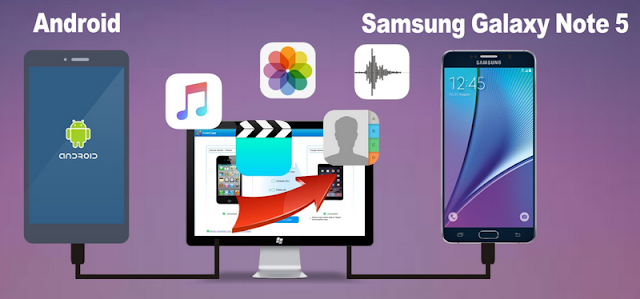
So, when you got a new samsung galaxy note 5, you may want to sync those important coantacts from your old HTC/LG to samsung galaxy note 5, how can i transfer contacts from htc/lg to samsung note 5?
Mobile Transfer can solve the problem to transfer contacts from LG/HTC to Samsung Galaxy Note 5, what's more, mobile transfer can also transfer text messages, videos, photos, call logs, calendar, music from htc/lg to samsung galaxy note 5.
You need three easy steps to transfer contacdts from lg/htc to samsung galaxy note 5:
Step 1: Download and install the Mobile Transfer on your computer
Step 2: Connect both your htc/lg and samsung note 5 to the pc
Step 3: Select contacts and transfer them to note 5
More steps details:
How to Transfer Contacts from HTC/LG/Sony/Huawei to Note 5
How to Recover Lost Data from Note 5

Transfer of files from Samsung ll to a new HTC desire 310 dual sim
Hi everyone, How does one sync files, which were back-up onto a computer from Samsung II via kies, to a brand new HTC 310 desire dual sim? Thanks
Unfortunately, Kies doesn't recognise HTC!
EA