






















Trending Topics

How to bypass unskippable YouTube ads on a mobile browser
I often get irritated while watching videos or podcasts when they have YouTube ads. Is there any way to skip YouTube ads on a mobile browser?

Which is your favourite internet browser?
There are so many internet browsers available today, Chrome, Safari, Firefox, Brave, Edge and a few others. Some people care about speed, some about privacy and others just stick to what came pre-installed. Which browser do you use the most, and why?

Ryzen 7 vs Intel Core Ultra: which would you choose for office work and light editing?
I usually have multiple browser tabs, documents and editing tools open together. I'm comparing laptops in a similar price range, but the processor names aren't making the decision any easier.

Does the Samsung Galaxy Z Fold8’s 7.6-inch inner display make split-screen apps genuinely usable?
I’m specifically looking at the display size for multitasking rather than watching videos. With the 7.6-inch 4:3 inner panel, I’m wondering if two apps side by side have enough usable space. I’d probably use a browser and notes or messages together.
Would you choose a MacBook with less storage over a Windows laptop with more?
The MacBook Air is tempting because of its battery life, but a similarly priced Lenovo offers more storage and ports. I mainly write and work with browser tabs.
The new MacBook Pro looks incredible, but I am starting to think the MacBook Air is actually more sensible for me
My work is mostly writing, browser tabs and Canva. I do not edit heavy videos or do any serious rendering, so I am questioning why I was even looking at the Pro.
I was about to order an ASUS Vivobook and then saw the new Lenovo Yoga Aura Edition
I mostly write and work in a browser, so I do not need gaming-level specs. The better display and battery on the Yoga are tempting, but so is the lower price of the ASUS.

My laptop gets quite hot during video calls even though I am not doing heavy work.
It mainly happens when the camera and several browser tabs are open together.
Google Is Basically Bringing Circle to Search Everywhere
Google is reportedly expanding Circle to Search-like functionality within Chrome through Gemini integration. The feature could let users quickly ask questions about content displayed on a webpage without leaving the browser.
Anyone still using Samsung Internet on the Galaxy S26?
Most of the smartphones are competing with battery and cameras, while Samsung is winning with its own browser, Samsung Internet. Has anyone discovered it yet?

Why do I keep seeing ads on my phone? How do I make it stop?
I frequently see ads on my phone. My tech-savvy friend configured that it is happening because of few settings, such as app permissions, browser tracking or could be a malware. How can I make it stop?

I love using Claude. But I am not sure if this supports platforms such as Android, iOS. Where is it exactly available?
It is available on all platforms even on Windows. Infact, it does have dedicated apps but to a selected regions. But the browser access is the most convenient option which is being widely used.

Xiomi Redmi Note 4G : Not a great phone
I am a sucker for stuff which is not easily available in the market. I guess Xiomi / Flipkart ganged up together to take advantage of this stupid Indian mentality. They create artificial scarcity of product by asking you to register for this product first and then wait for the given time and date to add this product in your cart. So guys, like a fool 2 minutes before the sale started I started staring at the screen and watching the counter as if my life depends upon it. So as the moment came I immediately clicked on the ‘BUY’ button and I was exhilarated to see that I was able to pick up this phone on Flipkart. I then like a stupid fool started gloating over this as if I have achieved something, as if I have won a gold medal or something. All this is OK, fine till I started using the product. There are glaring defects in this product. It heats up very fast once you start browsing the internet, use the apps like whatsapp or play games like Temple Run. The MI browser keeps crashing and displays the POPUP every now and then. “We are sorry that MI Browser is not working. Click the send report button to submit the Bug report or click on close button”. It hangs when you are clicking photos and there is an incoming call at the same time. So my euphoria over the possession of a phone which was difficult to get in the first place turned in to disappointment. This journey from feeling like a winner to ending up like a looser just took 2-3 days. For all the prospective buyers please beware that please don’t get in to this cheap thrills business. I reported this to Flipkart with the request to please OR OR I got a call from the Flipkart executive that they are willing to replace defective phone with a new phone provided I have the original packing. And my god damn luck, I don’t have the original card board packing. If anyone with little bit of common sense is hearing out there, I don’t need a new phone. I just need a phone without any defects. I challenge any one from Xiomi / Flipkart to deny that these defects are figment of my imagination and Xiomi Note -4G is a good product. Also I think we Indians have to learn that all this propaganda of asking you to register and keep you with awaited breath for the sales to begin is a false propaganda. Xiomi Red Note – 4G is just an ordinary product and not something to gloat over. I wish that Xiomi / Flipkart start treating Indian customers with little bit of respect and provide quality phones in the Indian market.

How to Transfer Contact from iPhone to Computer - iPhone Contact Transfer
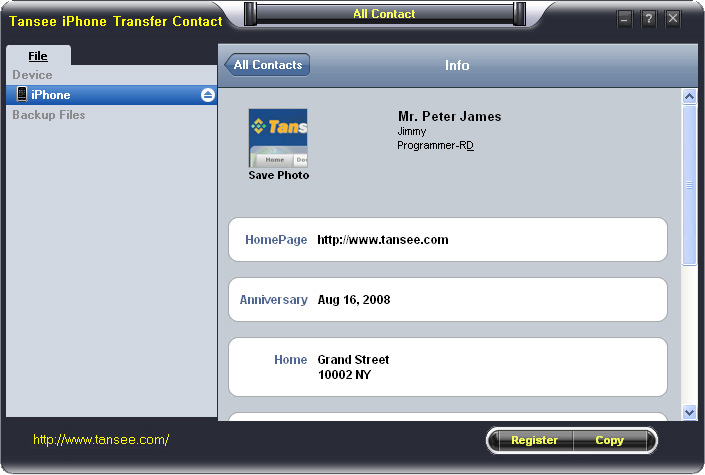
iPhone Transfer Contact can provide you: Tutorial 1: Transfer Contact from iPhone to Computer Tutorial 2: Transfer Contact’s photo from iPhone to Computer Tutorial 3: Restore Contact from CSV file to Outlook Tutorial 4: Restore Contact from CSV file to iPhone Step 2: Connect your iPhone to your computer, mobiletrans and run iPhone Transfer Contact. Then, your contacts on iPhone memory will display as shown in your iPhone screen automatically as fig 1. You can click on single name, all his or her information will display as fig 2 shown.
- Backup iPhone Contact’s Photos.
- Export two types of file format (Antc file, Text file).
- Export full screen of iPhone contact’s Photos.
- View Contacts in Text file format (.txt) or ANTC file format (.antc) on PC.
- Password protection support (ANTC file only).
Tutorial 1: How to transfer contact from iPhone to computer
Step 1: You can download iPhone Transfer Contact free version here, and install the software (skip if done yet). 

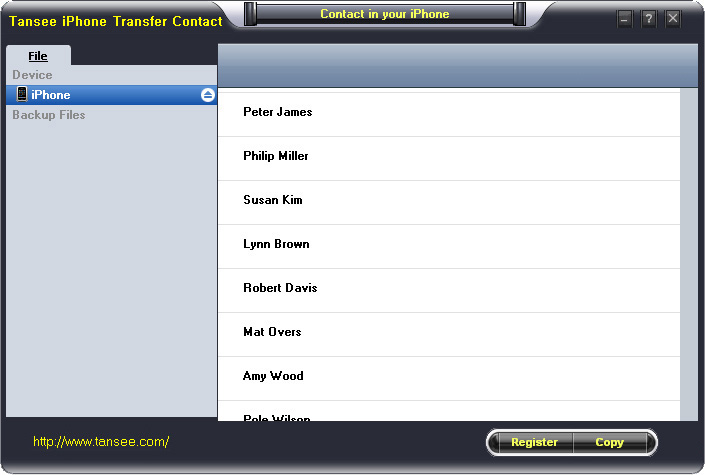
Step 3-a: In fig 1 situation, click button "Copy" to copy all contacts from your iPhone to your computer , then select options:
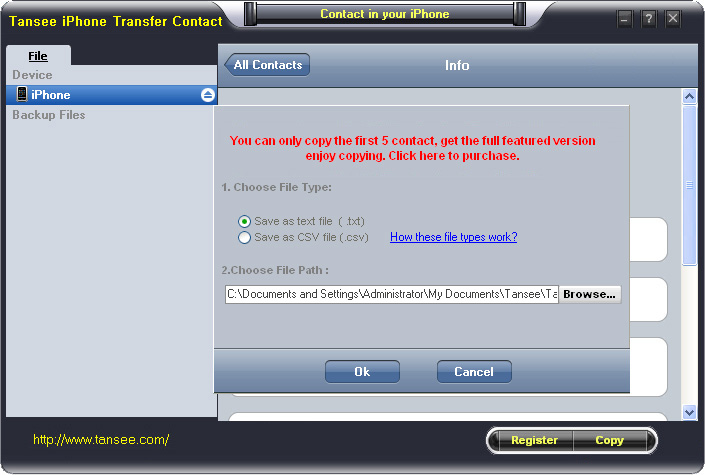
1: Choose File Type: backup to TXT file, ANTC file or CSV file;
2: Choose File Path: You also can change the backup path if you don’t use default path.
3: Advanced Option: if you choose ANTC format in step 1, you can add a password to protect the file.
Note: You must remember your password, because we don’t know the it except yourself. So please remember it well.
Click "OK" Button to finish the Copy. Please see fig 3.
Note: With trail version, you can only copy the first 5 contacts .

1: Choose File Type: Backup contacts to TXT file, and CSV file in single contact transfer;
2: Choose File Path: You can change the backup path if you do not use default path;
3: Advanced Option: Disabled in single contact transfer.
Click OK Button to finish the Copy. See fig 4.
Note: You can only copy the first 5 contacts in trail version.
Tutorial 2: How to transfer iPhone contact’s photo to computer?
In fig 2 above, you can click the photo of single person to save it to your computer., then you can transfer iPhone contact’s photo to computer. See fig 5.

Tutorial: 3:How to restore contact from CSV file to outlook?
Step 1: Backup all your contacts from iPhone to computer as .csv file format using iPhone Transfer Contact.
Step 2: Click on Start - All Programs - Accessories, click to open Address Book.
In Address Book, click File - Import - Other Address Book..., select "Text File (Comma Separated Values)", click Import, then browser the CSV file, click Next, Map the fields you wish to import, click finish.After all this, you had import the contacts to your Windows Address Book.
Step 3: Open Outlook; Open the File menu; Choose “Import and Export”; In the “Import and Export Wizard” dialog box choose “Import Internet email and address", then choose "OUTLOOK EXPRESS 4.X 5.X 6.X", click "Next".
Tutorial 4: How to restore contact from CSV file to iPhone?
Step 1: Backup all your iPhone contacts computer as .csv file format using iPhone Transfer Contact.
Step 2: Click on Start - All Programs - Accessories, click to open Address Book.
In Address Book, click File - Import - Other Address Book..., select "Text File (Comma Separated Values)", click Import, then browser the CSV file, click Next, Map the fields you wish to import, click finish.After all this,how to use anytrans you had import the contacts to your Windows Address Book.
Step 3: Open iTunes, connect iPhone, click to select the iPhone on iTunes, choose Info tab, in Contact section, check "Sync contacts with Window Address Book", click apply. Back To Homepage.