






















Trending Topics

I want to change the outfit and add accessories to my picture. Should I use Gemini, ChatGPT, or Grok?
Many apparel brands are offering virtual try-on on outfits. Recently i was testing a few AI tools on my image. Looked on my Instagram feeds many of my Instafam have used the saree trend to generate images. I was also testing with a few prompts to generate images. I want to experiment with accessories with Western outfits. What should I opt for? Gemini, Chatgpt or Grok? Let me know your experience.

Has anyone actually used UWB features on the Samsung Galaxy Z Fold8 Ultra?
The Ultra includes Ultra-Wideband connectivity, which isn’t something I normally think about while choosing a phone. I’m curious if people are already using it with compatible Galaxy accessories or smart devices.
Does Bluetooth 6.0 make any practical difference when using Galaxy Buds with the Samsung Galaxy Z Fold8 Ultra?
The Ultra supports Bluetooth 6.0, and I use wireless earbuds almost every day. I’m wondering if anyone has noticed improvements in connectivity or overall stability with compatible accessories.

Does the Samsung Galaxy Z Fold8 feel different when using it with Galaxy Buds and a Galaxy Watch?
I already use Samsung accessories, so I’m curious about how well the Samsung Galaxy Z Fold8 fits into the Galaxy ecosystem. I’m mainly interested in things like quick device switching, notifications and how easily the phone works with the Watch and Buds.
Would you buy a Xiaomi Pad instead of stretching for an iPad?
I need a tablet for reading, video calls and handwritten notes. The Xiaomi option leaves enough money for accessories, while the iPad costs more before I even buy a pencil.
An iPad was the obvious choice until I checked what actually comes in the box
The starting price looked manageable at first. Then accessories started adding up

Oppo Unveils Find X9 Pro’s Hasselblad Professional Imaging Kit
Oppo is expected to launch its Find X9 series smartphones later this week. Ahead of the launch, the company has unveiled a set of accessories for the Pro model that is aimed at enhancing its imaging capabilities. Dubbed Hasselblad Professional Imaging Kit, it will be a modular attachment that includes a lens and two attachment mechanisms.
What do you think?

Le 1s Eco leads the way in the content game
LeEco is changing the smartphone landscape with their breakthrough technology and disruptive pricing. The company seems to be now ushering in a bold new era in an industry that is sorely lacking innovation! With their new ‘Made for India’ smartphone – the Le 1s Eco whose launch event I attended – LeEco is not only taking competitors head on in the smartphone industry, but seems to be in the process of transforming the way users experience entertainment with their LeEco Membership Program. LeEco Membership comprises 4 entertainment services – Video on Demand through the Levidi app, Live Channels on LIVE built‐in app, Music powered by Hungama Music and Live Concerts via LeMusic initiative – and is available for a price of Rs. 490 per month or an annual subscription of Rs. 4900. Levidi is LeEco’s own video aggregator application that offers a choice of more than 2000 blockbuster films from the ErosNow stable in 10 languages – English, Hindi, Marathi, Gujarati, Punjabi, Bengali, Tamil, With LIVE, users get access to more than 100 television channels through a partnership with YuppTV. With the likes of Sony, Colors, Aaj Tak, Times Now, 9XM, Nickelodeon and more available, whatever your daily television fix is, LIVE delivers it. The tie‐up with Hungama Music gives subscribers access to a catalogue of more than 3.5 million songs. What’s more, the music experience is completely ad‐free and streams high‐definition music at 320 kbps in 25 Indian and 6 international languages. Members will also be able to watch more than 50 international rock, jazz, pop and classical live concerts, real‐time, from the comfort of their phones. Besides VIP access to all Supertainment services, LeEco is also offering an unprecedented 5TB of LeEco Drive cloud storage along with Rs. 3,000 worth of coupons for their accessories. In comparison, Xiaomi’s Redmi Note 3, the only other phone in the Indian market to offer a well‐advertised content bundle, was announced with a two‐month subscription to the Hungama film and music library. The LeEco Membership Program offers a one‐year subscription straight off the bat. On the device front, the Le 1s Eco comes with 3GB RAM and 32GB ROM and is priced at Rs. 9,999 for the company’s first sale on Flipkart on May 12. A version of the Redmi Note 3 is available in the market at the same price, but comes with 2GB RAM and 16GB ROM. Meanwhile, the top spec version of I did a bit of research on the internet and made a more detailed comparison chart of the LeEco Le 1s Eco against its competition in the market.
Telugu, Kannada and Malayalam.
the Redmi Note 3 will burn a Rs. 11,999‐sized hole in your pocket – a Rs. 2,000‐sized larger hole than the Le 1s Eco!

So what do you think of these Supertainment services and the Le 1s Eco smartphone that LeEco is providing? Share your thoughts in the comments below!

How to Transfer Contact from iPhone to Computer - iPhone Contact Transfer
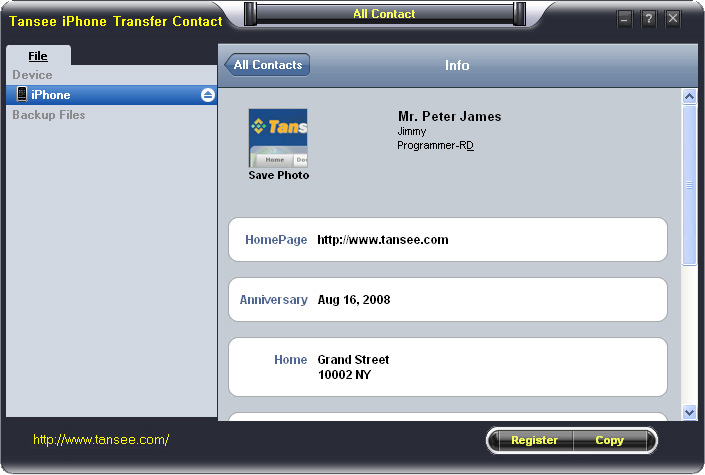
iPhone Transfer Contact can provide you: Tutorial 1: Transfer Contact from iPhone to Computer Tutorial 2: Transfer Contact’s photo from iPhone to Computer Tutorial 3: Restore Contact from CSV file to Outlook Tutorial 4: Restore Contact from CSV file to iPhone Step 2: Connect your iPhone to your computer, mobiletrans and run iPhone Transfer Contact. Then, your contacts on iPhone memory will display as shown in your iPhone screen automatically as fig 1. You can click on single name, all his or her information will display as fig 2 shown.
- Backup iPhone Contact’s Photos.
- Export two types of file format (Antc file, Text file).
- Export full screen of iPhone contact’s Photos.
- View Contacts in Text file format (.txt) or ANTC file format (.antc) on PC.
- Password protection support (ANTC file only).
Tutorial 1: How to transfer contact from iPhone to computer
Step 1: You can download iPhone Transfer Contact free version here, and install the software (skip if done yet). 

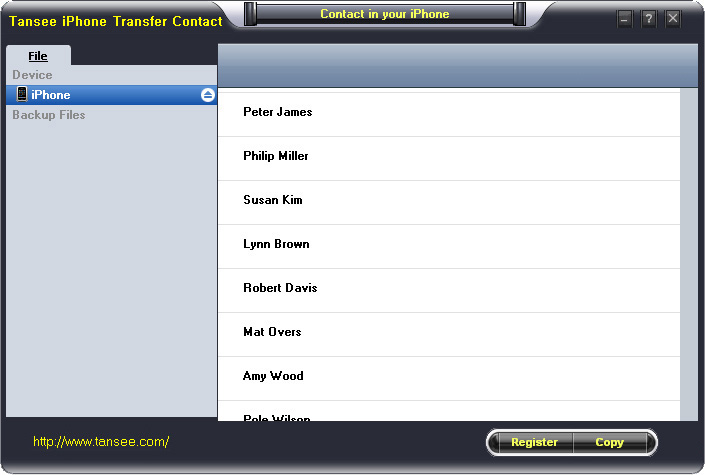
Step 3-a: In fig 1 situation, click button "Copy" to copy all contacts from your iPhone to your computer , then select options:
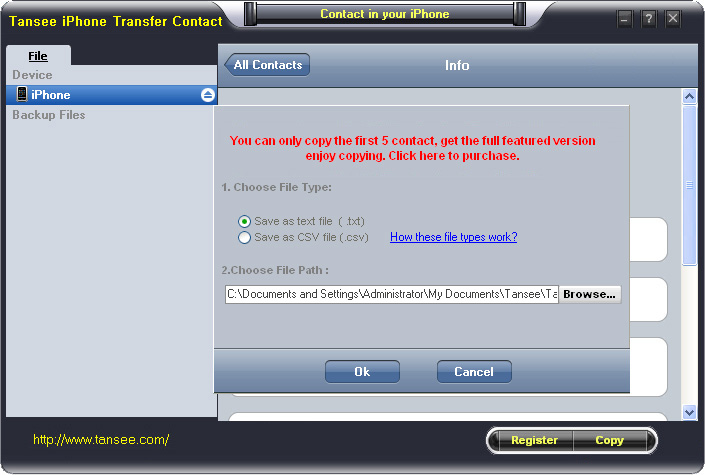
1: Choose File Type: backup to TXT file, ANTC file or CSV file;
2: Choose File Path: You also can change the backup path if you don’t use default path.
3: Advanced Option: if you choose ANTC format in step 1, you can add a password to protect the file.
Note: You must remember your password, because we don’t know the it except yourself. So please remember it well.
Click "OK" Button to finish the Copy. Please see fig 3.
Note: With trail version, you can only copy the first 5 contacts .

1: Choose File Type: Backup contacts to TXT file, and CSV file in single contact transfer;
2: Choose File Path: You can change the backup path if you do not use default path;
3: Advanced Option: Disabled in single contact transfer.
Click OK Button to finish the Copy. See fig 4.
Note: You can only copy the first 5 contacts in trail version.
Tutorial 2: How to transfer iPhone contact’s photo to computer?
In fig 2 above, you can click the photo of single person to save it to your computer., then you can transfer iPhone contact’s photo to computer. See fig 5.

Tutorial: 3:How to restore contact from CSV file to outlook?
Step 1: Backup all your contacts from iPhone to computer as .csv file format using iPhone Transfer Contact.
Step 2: Click on Start - All Programs - Accessories, click to open Address Book.
In Address Book, click File - Import - Other Address Book..., select "Text File (Comma Separated Values)", click Import, then browser the CSV file, click Next, Map the fields you wish to import, click finish.After all this, you had import the contacts to your Windows Address Book.
Step 3: Open Outlook; Open the File menu; Choose “Import and Export”; In the “Import and Export Wizard” dialog box choose “Import Internet email and address", then choose "OUTLOOK EXPRESS 4.X 5.X 6.X", click "Next".
Tutorial 4: How to restore contact from CSV file to iPhone?
Step 1: Backup all your iPhone contacts computer as .csv file format using iPhone Transfer Contact.
Step 2: Click on Start - All Programs - Accessories, click to open Address Book.
In Address Book, click File - Import - Other Address Book..., select "Text File (Comma Separated Values)", click Import, then browser the CSV file, click Next, Map the fields you wish to import, click finish.After all this,how to use anytrans you had import the contacts to your Windows Address Book.
Step 3: Open iTunes, connect iPhone, click to select the iPhone on iTunes, choose Info tab, in Contact section, check "Sync contacts with Window Address Book", click apply. Back To Homepage.
Buying Advice : dual sim with good cofiguration
I want to bye dual sim with min 3GB RAM. I zeored on HTC One ME Dual sim. I dont like the rubber finish at the back. is it possible to get HTC One M9 with dual? i saw in website HTC one M8 dual sim! Is there any better than HTC One ME dual ?
if not, any way to make HTC One ME dual better look with nice cover / accessories?
or will there be any better phone be released in another 3 to 4 months?

Will MacBook Air read the data from a hard disk?
Will MacBook Air read the data from a hard disk? Like movies with vlc player. Will the movie still run on macbook air. Will it read songs with ext.mp4. Without buying any accessories. Please reply fast.

Shops where you can try before you buy
For things like headphones, and some mobile accessories like gamepads, it's important to get a feel of it before you actually spend a lot of money to buy them. But with online sellers, that's obviously not an option. I've faced the same issue with a lot of retail outlets as well - so, do you have any favourite shops that let you properly try out products before you can buy them?