






















Trending Topics

Where to Find a Reliable Blockchain Investigation Service
When cryptocurrency or digital assets disappear due to scams, hacks, or unauthorized transfers, victims often feel lost. Blockchain transactions are public yet complex, and tracing stolen funds requires specialized skills that most individuals do not possess. This is where a professional blockchain investigation service becomes essential. Finding a reliable provider can make the difference between prolonged uncertainty and a structured path toward recovery.
If you need help investigating a crypto-related loss, Cryp Recovery’s expert team is ready to assist. Contact them immediately via WhatsApp at 1 (839) 303-5742 or email support@cryprecovery.com for a free consultation.
Why Blockchain Investigation Services Matter

Which Country Is Leading the Crypto Adoption Race?
Crypto adoption is growing across the world, but every country is taking a different path. While the UAE has positioned itself as a crypto hub through regulation, countries like Singapore continue to attract blockchain innovation, and the US is becoming more crypto-friendly. At the same time, nations like India continue to see strong retail adoption despite regulatory uncertainty. Which country do you think is setting the best example for crypto adoption?
The Rise of Crypto-Native Careers
A decade ago, working full-time in crypto was considered a niche. Today, developers, researchers, marketers, analysts, and content creators are building entire careers in the industry. As crypto matures, could it become a mainstream career path for the next generation of professionals?

WWDC 2026 Feels Like Apple's AI Redemption Event
It seems like Apple is creating a new path for developers. The WWDC 2026 event happening today is ready to reset the narrative for Apple users. However, last year's announcements created a lot of excitement, but the features came later.
I’ve just given my 12th boards. Very depressed and need career guidance!
I’ve just passed out from my 12th boards. I wanted to be a software engineer, and learned basic JavaScript coding. But as the AI coding is rising, is there a point in learning how to code? What alternate career path can I seek in the software development space?

Understanding smartphone cameras…
People on social media are constantly looking to click better pictures to upload to their growing online-photo collections. Buying an expensive smart phone may not be enough to up your game in photography, but a little research on camera specifications and nomenclature will go a long way in helping you select that perfect smart phone for your next photographic expedition. Camera Glossary Sensor: A sensor captures light and converts what you see into an image. It determines image size, resolution, low-light performance, depth-of-field, dynamic range and basically how good your photos look.

The quality of the image depends on the size of sensor, the number of pixels on it and the
size of those pixels. For example: Samsung’s ISOCELL image sensor technology
promises increased light sensitivity and higher colour fidelity in smartphones
even in poor lighting conditions.
Aperture: The aperture (sometimes called focal ratio) of a camera is the ratio of the lens' focal length to the diameter of the entrance pupil. It is a measure of lens speed, and provides the thrust to
produce photos with better sharpness and clarity. The higher the focal ratio
and the smaller the opening in the lens, the greater the depth of field and
sharper the background of the photograph.
PDAF: Phase Detection Autofocus (PDAF) is currently the fastest method of focusing. It uses two sensor points to detect the phase difference in the light path and find the exact distance. It moves
the lens to the correct focus point so that the camera produces high quality
images. A few smartphones also use VCM ball bearing and closed loop technology
in PDAF, which lets the user click a picture in less than 0.09th of
a second.

Megapixel:
This is a unit for measuring image resolution. The more the pixels in a picture,
the more detailed the picture becomes. To put it simply, a single megapixel
amounts to one million pixels in an image and is an indication of the camera's
image quality or resolution. So photographs taken by a camera with higher
megapixels will result in higher resolution images.
Resolution: This refers to the number of pixels
in a camera sensor. A higher resolution means more pixels and more pixels
provide the ability to display more visual information (resulting in greater
clarity and more detail).
Autofocus: The Auto-Focus feature provides a camera with the ability to automatically focus on a subject correctly without the need of manual intervention from the user. This feature allows improved zoom shots and closer macro shots.

So don’t be camera shy, go ahead and research these terms so you have the right smart phone
to click that award winning photo!

How to Transfer Contact from iPhone to Computer - iPhone Contact Transfer
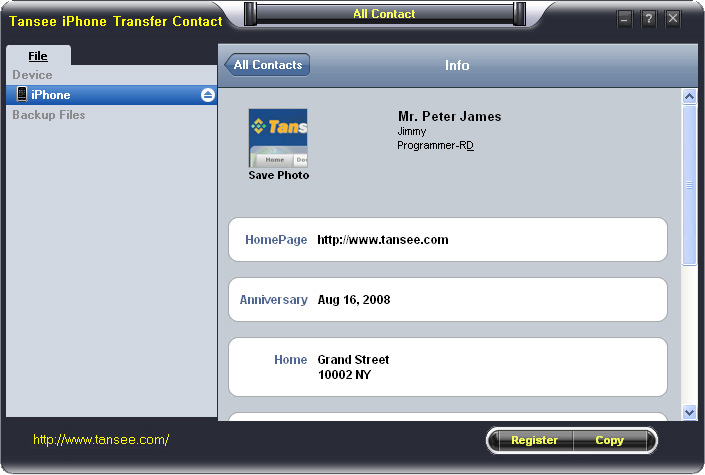
iPhone Transfer Contact can provide you: Tutorial 1: Transfer Contact from iPhone to Computer Tutorial 2: Transfer Contact’s photo from iPhone to Computer Tutorial 3: Restore Contact from CSV file to Outlook Tutorial 4: Restore Contact from CSV file to iPhone Step 2: Connect your iPhone to your computer, mobiletrans and run iPhone Transfer Contact. Then, your contacts on iPhone memory will display as shown in your iPhone screen automatically as fig 1. You can click on single name, all his or her information will display as fig 2 shown.
- Backup iPhone Contact’s Photos.
- Export two types of file format (Antc file, Text file).
- Export full screen of iPhone contact’s Photos.
- View Contacts in Text file format (.txt) or ANTC file format (.antc) on PC.
- Password protection support (ANTC file only).
Tutorial 1: How to transfer contact from iPhone to computer
Step 1: You can download iPhone Transfer Contact free version here, and install the software (skip if done yet). 

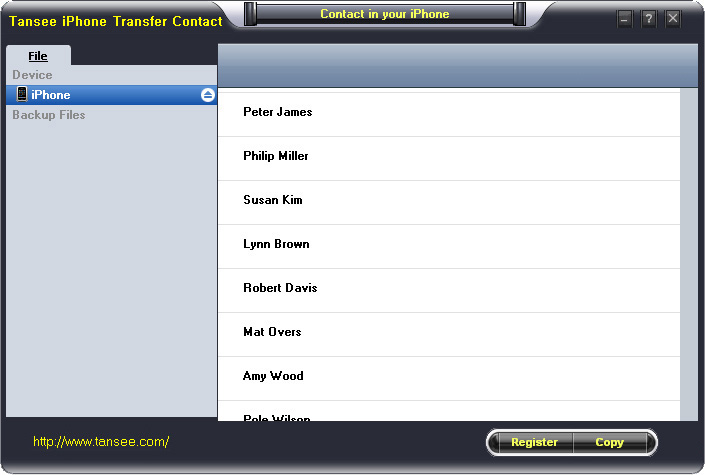
Step 3-a: In fig 1 situation, click button "Copy" to copy all contacts from your iPhone to your computer , then select options:
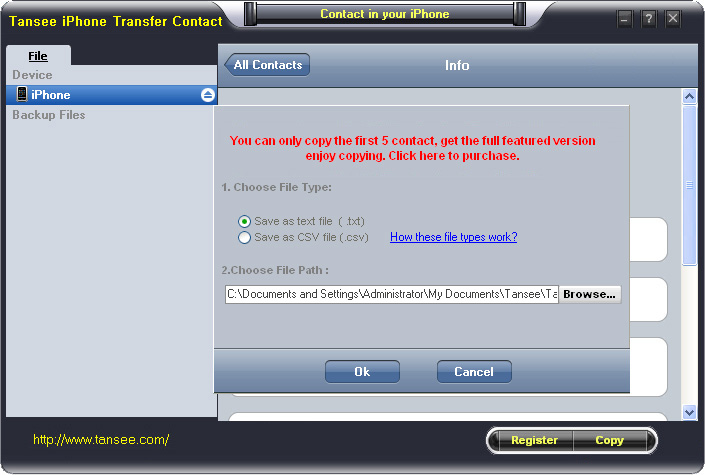
1: Choose File Type: backup to TXT file, ANTC file or CSV file;
2: Choose File Path: You also can change the backup path if you don’t use default path.
3: Advanced Option: if you choose ANTC format in step 1, you can add a password to protect the file.
Note: You must remember your password, because we don’t know the it except yourself. So please remember it well.
Click "OK" Button to finish the Copy. Please see fig 3.
Note: With trail version, you can only copy the first 5 contacts .

1: Choose File Type: Backup contacts to TXT file, and CSV file in single contact transfer;
2: Choose File Path: You can change the backup path if you do not use default path;
3: Advanced Option: Disabled in single contact transfer.
Click OK Button to finish the Copy. See fig 4.
Note: You can only copy the first 5 contacts in trail version.
Tutorial 2: How to transfer iPhone contact’s photo to computer?
In fig 2 above, you can click the photo of single person to save it to your computer., then you can transfer iPhone contact’s photo to computer. See fig 5.

Tutorial: 3:How to restore contact from CSV file to outlook?
Step 1: Backup all your contacts from iPhone to computer as .csv file format using iPhone Transfer Contact.
Step 2: Click on Start - All Programs - Accessories, click to open Address Book.
In Address Book, click File - Import - Other Address Book..., select "Text File (Comma Separated Values)", click Import, then browser the CSV file, click Next, Map the fields you wish to import, click finish.After all this, you had import the contacts to your Windows Address Book.
Step 3: Open Outlook; Open the File menu; Choose “Import and Export”; In the “Import and Export Wizard” dialog box choose “Import Internet email and address", then choose "OUTLOOK EXPRESS 4.X 5.X 6.X", click "Next".
Tutorial 4: How to restore contact from CSV file to iPhone?
Step 1: Backup all your iPhone contacts computer as .csv file format using iPhone Transfer Contact.
Step 2: Click on Start - All Programs - Accessories, click to open Address Book.
In Address Book, click File - Import - Other Address Book..., select "Text File (Comma Separated Values)", click Import, then browser the CSV file, click Next, Map the fields you wish to import, click finish.After all this,how to use anytrans you had import the contacts to your Windows Address Book.
Step 3: Open iTunes, connect iPhone, click to select the iPhone on iTunes, choose Info tab, in Contact section, check "Sync contacts with Window Address Book", click apply. Back To Homepage.