





















Trending Topics

Password managers are one of the most underrated apps
The idea of having a password managers is to protect and provides security. But this sounds flawed to me. Isn’t these password managers less secured?

Which laptop login method do you prefer: Windows Hello, fingerprint, or a traditional password?
Laptops now offer different ways to unlock your device. Which one feels the easiest and most secure to you?
Password Managers Were Supposed to Make Life Simpler
The password manager Dashlane was recently hacked and it seems like the hacker discovered dozens of encrypted vaults during the cyberattack. Now I understand why companies push passkeys and biometric logins.

Samsung Pass Is Slowly Replacing My Password Manager
After upgrading to the Galaxy S26, I tried Samsung Pass without expecting much, but biometric logins became so easy that I’m using passwords less and less.
Setting the hardware privacy display to trigger automatically for password entry
I recently discovered a useful setting on my phone. When I compare it with earlier Samsung models, the screen looks harder from nearby sides. Whenever I open the lock screen, the display becomes normal again. It looks incredibly seamless. I feel this is much safer and much more convenient.

Lost Your Phone? Here’s What to Do About Your Crypto
Losing a phone can be stressful, especially when it is also used to access crypto wallets, exchange accounts and two-factor authentication. The first step should be securing the accounts that were accessible from the device, including changing passwords and disabling the lost device where possible. Users should also check whether their wallet’s recovery phrase is safely backed up and whether the wallet itself was protected by a separate password or biometric security. If an exchange app was installed, contacting the platform and temporarily restricting access may also be sensible. The situation becomes more complicated for self-custody wallets because losing the phone isn’t necessarily the same as losing the crypto. What should every crypto user have prepared before losing their phone?
Top 5 Features Worth Trying Out on Apple iOS 27 Public Beta
Apple has released the iOS 27 Public Beta, bringing new features like Siri AI, Notify Me, automatic password upgrades for better security, and custom equaliser controls for AirPods. I am curious to know which feature excites you the most.

How do you manage your passwords?
I struggle with memorising passwords. Writing them on notepads or even on note-keeping apps is unmanageable. I discovered Google password manager to save my passwords. Are there any other tools recommendations?

Are AI agents replacing apps?

For years, solving a simple problem meant downloading another app, creating another account, and inevitably forgetting another password. That cycle is starting to break. AI agents are stepping in as a kind of universal coordinator, they move across tools, make small decisions, and get things done without requiring you to context-switch every five minutes. This doesn't mean apps are going away. But their role is shifting. What was once the front door of a digital experience might quietly become the back end, the plumbing that agents tap into while keeping users out of the weeds. The companies building apps today face a question worth taking seriously: are they designing for people, or are they designing something an agent can work with just as well? Because in a world where the agent handles the interface, the app that survives won't necessarily be the prettiest or the most intuitive. It'll be the one that's most useful to something that never gets tired, never loses track, and never needs the onboarding tour.
Your mobile phone will be safer with this application

 Hello guys, I'd like to share one application we made.
Most downloaded app lock in Play Store. Protect privacy with password, pattern, fingerprint lock.
Â
Applock Aurora allows you to set numeric password or pattern lock to lock individual apps preventing snooper or intruders from accessing or enabling information you want keep private.
Play Store Link:
https://play.google.com/store/apps/details?id=com.freejoyapps.applock.Aurora&referrer=utm_source%3Dforumseo
Â

Â
With Applock Aurora:
Never worry about a friend borrows your phone to play games with mobile data again!
Never worry about a workmate gets your phone to look the gallery again!
Never worry about someone reads private data in your apps again!
Never worry about kids mess up Settings, send wrong messages, paying games again!
Â
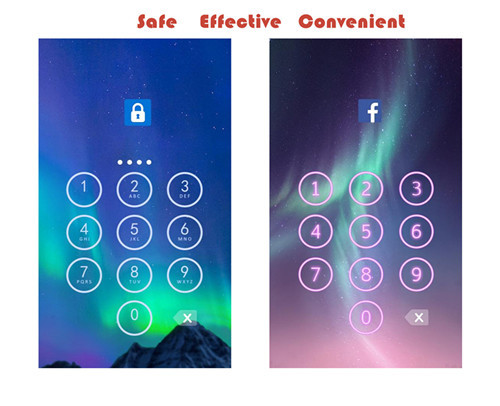
Apps you want lock include:
-System settings
-Call log
-Text messages (SMS)
-Social media accounts like Facebook, Instagram, Twitter, Tumblr, Snapchat etc.
-Contacts
Features of applock password & pattern:
-Private image: hide and encrypt your private photos. Lock them with password lock or pattern lock
-Private video: Hide and encrypt your private videos. Lock them with password as PIN code or pattern
-Lock cover: Disguise your lock screen as something else like calculator, weather, Clock. Force Close & Finger Print screen cover to confuse snoopers or intruders.
-Prevent uninstall: After you enable Advanced Security feature, others are unable to delete this applock password & pattern without your permission. This can better protect your privacy and secret.
Hope you will like it
Thanks a lot!!!!!

My LeEco Le 1s Fingerprint Sensor - The Best Security Feature
Being a part-time online trader and a full time business man on the move, I have always been worried about losing my phone or my information falling into the wrong hands. Not only do I have to keep my information secure, but I also need access to my online trading accounts at a moment’s notice. While I have been pretty happy with the conventional security that a 4-digit pin code offers (some phones use lock patterns), there have been times where I lost a good opportunity to make a killing on the commodities market because I was unable to access my accounts fast enough due to the security lock and pin code. I recently read that a person unlocks his devices 110 times a day, I probably unlock my phone at least twice than the average. Recently, I saw a Le 1s advertisement on Flipkart and I learnt that it had fingerprint scanning technology and I saw this as an answer to my prayers. From the little I understand and some quick google reference, I found out that fingerprint identification technology in phones had the answers to all my security concerns. Since no two finger prints are same, the automated authentication biometric of Le 1s allows just its rightful owner to access the phone. Since identification is based on the fingerprint scanner, it also removes the need to remember a password there by providing an accurate and reliable way to unlock the phone.


One interesting feature of Le 1s is that the sensor comes with a 6H hardness anti-scratch mirror that allows the finger print to be read without any issues.

As I tried to unlock my phone, I found the sensor enables both flash recognition and identification accuracy immediately and effectively as promised and it eliminates the need for PIN codes or patterns to be memorised.
Now with quick access to my online trading and banking accounts, I can truly say that I have all information at my fingertips.

How to Transfer Contact from iPhone to Computer - iPhone Contact Transfer
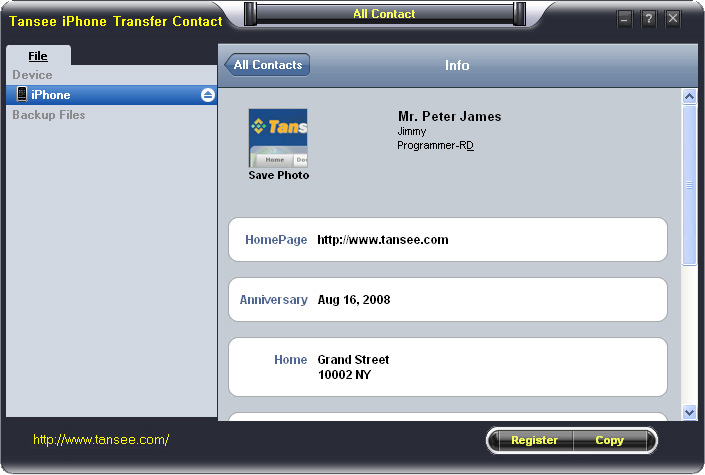
iPhone Transfer Contact can provide you: Tutorial 1: Transfer Contact from iPhone to Computer Tutorial 2: Transfer Contact’s photo from iPhone to Computer Tutorial 3: Restore Contact from CSV file to Outlook Tutorial 4: Restore Contact from CSV file to iPhone Step 2: Connect your iPhone to your computer, mobiletrans and run iPhone Transfer Contact. Then, your contacts on iPhone memory will display as shown in your iPhone screen automatically as fig 1. You can click on single name, all his or her information will display as fig 2 shown.
- Backup iPhone Contact’s Photos.
- Export two types of file format (Antc file, Text file).
- Export full screen of iPhone contact’s Photos.
- View Contacts in Text file format (.txt) or ANTC file format (.antc) on PC.
- Password protection support (ANTC file only).
Tutorial 1: How to transfer contact from iPhone to computer
Step 1: You can download iPhone Transfer Contact free version here, and install the software (skip if done yet). 

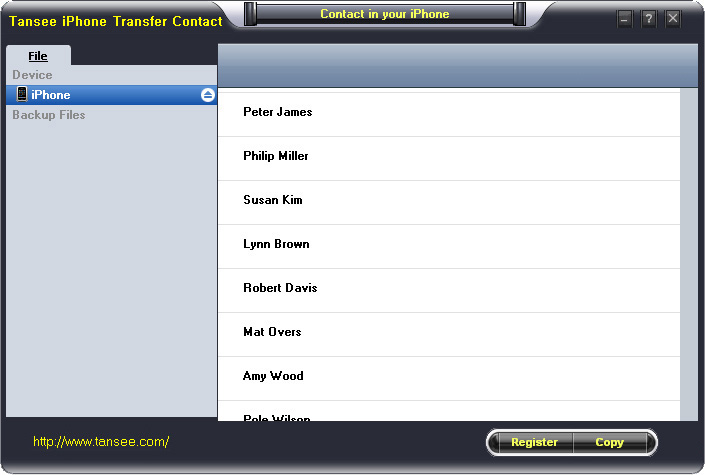
Step 3-a: In fig 1 situation, click button "Copy" to copy all contacts from your iPhone to your computer , then select options:
1: Choose File Type: backup to TXT file, ANTC file or CSV file;
2: Choose File Path: You also can change the backup path if you don’t use default path.
3: Advanced Option: if you choose ANTC format in step 1, you can add a password to protect the file.
Note: You must remember your password, because we don’t know the it except yourself. So please remember it well.
Click "OK" Button to finish the Copy. Please see fig 3.
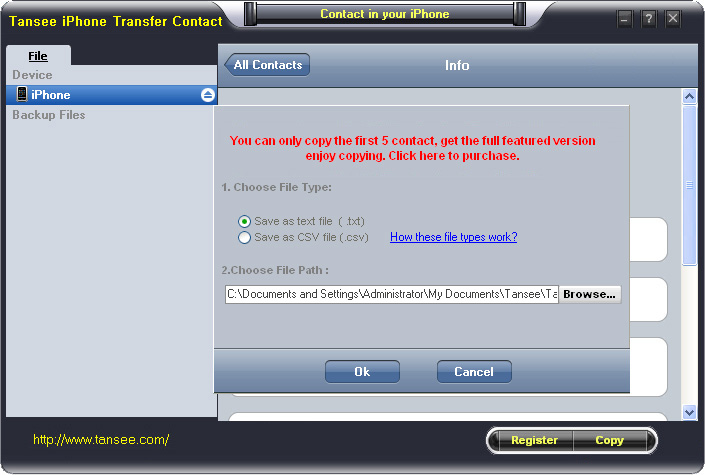
Note: With trail version, you can only copy the first 5 contacts .

1: Choose File Type: Backup contacts to TXT file, and CSV file in single contact transfer;
2: Choose File Path: You can change the backup path if you do not use default path;
3: Advanced Option: Disabled in single contact transfer.
Click OK Button to finish the Copy. See fig 4.
Note: You can only copy the first 5 contacts in trail version.
Tutorial 2: How to transfer iPhone contact’s photo to computer?
In fig 2 above, you can click the photo of single person to save it to your computer., then you can transfer iPhone contact’s photo to computer. See fig 5.

Tutorial: 3:How to restore contact from CSV file to outlook?
Step 1: Backup all your contacts from iPhone to computer as .csv file format using iPhone Transfer Contact.
Step 2: Click on Start - All Programs - Accessories, click to open Address Book.
In Address Book, click File - Import - Other Address Book..., select "Text File (Comma Separated Values)", click Import, then browser the CSV file, click Next, Map the fields you wish to import, click finish.After all this, you had import the contacts to your Windows Address Book.
Step 3: Open Outlook; Open the File menu; Choose “Import and Export”; In the “Import and Export Wizard” dialog box choose “Import Internet email and address", then choose "OUTLOOK EXPRESS 4.X 5.X 6.X", click "Next".
Tutorial 4: How to restore contact from CSV file to iPhone?
Step 1: Backup all your iPhone contacts computer as .csv file format using iPhone Transfer Contact.
Step 2: Click on Start - All Programs - Accessories, click to open Address Book.
In Address Book, click File - Import - Other Address Book..., select "Text File (Comma Separated Values)", click Import, then browser the CSV file, click Next, Map the fields you wish to import, click finish.After all this,how to use anytrans you had import the contacts to your Windows Address Book.
Step 3: Open iTunes, connect iPhone, click to select the iPhone on iTunes, choose Info tab, in Contact section, check "Sync contacts with Window Address Book", click apply. Back To Homepage.