






















Trending Topics

Mobile upto 25000
On  want to buy a mobile upto 25000 pls suggest me the best available mobile or one which is ​launching soon. 

Help! help! need invite one plus 2
i have waited 3.5 months for one plus 2. so i need invite ASAP or else i will end up shopping and all with those money......any1 who have invite plz share with me arbind011@gmail.com
thanks in advance 

What's your Favorite Android App?
Okay I have been searching for this thread, Couldn't find one.. So started a new one.. Guys tell me what's your favorite app and why, As am a bit lazy to search in that wide Android market.. Btw my favorite is Swizzle(Music based Social Media App) and Hike(Chat app with new stickers). 

[Giveway] [Official] Free Bitdefender Total Security 2015 6 Months Official Key
Just visit this page: Click Here This is my first post on NDTV Gadgets Fourm. I will be posting more soon! No need to say thanks, your blessings are enough for me
Enter your email to get key.
Your mobile phone will be safer with this application

 Hello guys, I'd like to share one application we made.
Most downloaded app lock in Play Store. Protect privacy with password, pattern, fingerprint lock.
Â
Applock Aurora allows you to set numeric password or pattern lock to lock individual apps preventing snooper or intruders from accessing or enabling information you want keep private.
Play Store Link:
https://play.google.com/store/apps/details?id=com.freejoyapps.applock.Aurora&referrer=utm_source%3Dforumseo
Â

Â
With Applock Aurora:
Never worry about a friend borrows your phone to play games with mobile data again!
Never worry about a workmate gets your phone to look the gallery again!
Never worry about someone reads private data in your apps again!
Never worry about kids mess up Settings, send wrong messages, paying games again!
Â
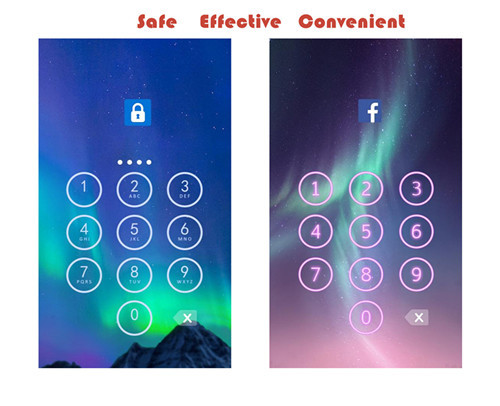
Apps you want lock include:
-System settings
-Call log
-Text messages (SMS)
-Social media accounts like Facebook, Instagram, Twitter, Tumblr, Snapchat etc.
-Contacts
Features of applock password & pattern:
-Private image: hide and encrypt your private photos. Lock them with password lock or pattern lock
-Private video: Hide and encrypt your private videos. Lock them with password as PIN code or pattern
-Lock cover: Disguise your lock screen as something else like calculator, weather, Clock. Force Close & Finger Print screen cover to confuse snoopers or intruders.
-Prevent uninstall: After you enable Advanced Security feature, others are unable to delete this applock password & pattern without your permission. This can better protect your privacy and secret.
Hope you will like it
Thanks a lot!!!!!

I'm No. 2 Currently
I'm number two currently in here, and I hope to be number one soon, see it here: http://forum.gadgets.ndtv.com/users?period=all And I hope you guys like my post and stuff and guess what? I'm gonna open a site myself soon by the end of this month
Can't Post In The Lounge Section :/
So, I wanted to create a thread to tell people that I'm back but there is no option in the dropdown menu to choose from categories PS: Did you guys miss me? 


Two Smartphones launched by Honor
Honor has just launched the Honor 5X at Rs.12,999 and the surprise Holly 2 Plus at Rs. 8,499. Pre orders start today at Amazon and Flipkart. Really excited and look forward to owning one!!!

Honor 5X Launch
Honor 5X which is scheduled for launch tomorrow (28th Jan) comes with Fingerprint Sensor 2.0. Looking forward to the faster than ever before smartphone:sunglasses 

Xiaomi Redmi Note 2 Prime - problem with messenger notification
Hi,
I've enabled floating notifications for messenger, but when someone texts me, I got chat head (which is ok for me) and notification's bar in upper area of screen (it writes info like who is writing and what's writing). How to disable this bar?


xiaomi replacement policy
i ordered a redmi note 3 hard case which i recieved at my home on evening of 30 june.
checked it on reaching home at 9.30. found it bent at two spots. didnt use it. after numerous failed attempts to contact the customer support via phone i contacted via online chat support.
the support executive said i should mail snapshots of the defective product, its packaging, and the defect. which i yesterday i.e 5-6-16
and i was surprised to read the response i got.

http://www.mi.com/in/service/replacefaq/
clearly mentioned 10 days replacement policy.
customer has to initiate a replacement request mentioning the defect and email snapshots in case of physical damage.
but in mail and on online support they say we have to report it within 24 hrs to be eligible for replacement.


How to Recover Deleled Photos from Samsung S7/S7 Edge
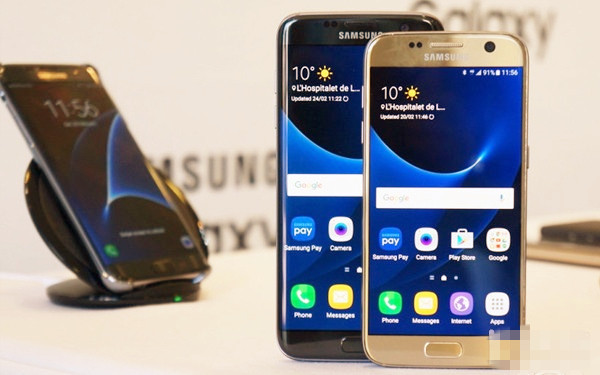
The Samsung Galaxy S7 Edge is a dual SIM (GSM and GSM) smartphone Connectivity options include Wi-Fi, GPS, Bluetooth, NFC, 3G, 4G (with support for Band 40 used by some LTE networks in India). Sensors on the phone include Proximity sensor, Ambient light sensor, Accelerometer, and Gyroscope.Â
How to Recover Lost/Deleted Photos from Samsung S7/S7 Edge:
We can show you this Samsung Data Recovery which can easily and safely recover delete or lost data including contacts, text messages, videos, photos, call logs, music, whatsapp messages from Samsung Galaxy S7/S7 Edge.
More info:
Method to Recover Deleted Photos from S7/S7 Edge
Â



Customer's Inconvenience: Grievance Or Stupidity?
"Customer is the king. Customer is always right. Customer is important. Every customer counts." Blah. Blah. Blah. are what we always hear from everyone! There is no organization that does not value their customers as they are the ones driving the entire business. It's a fact that every customer is important and many customers genuinely express their inconvenience. On the contrary, there is a whole new category of customers who choose to pick up the sword of social media platforms to ambush the budding startups. Having a few years of experience working with startups, my personal experience compels me to write this blog in support of such firms who get to deal with a lot of crap like that. It is sad to have witnessed that a customer is called a king for a purpose which is surely not being fulfilled in today's date. None of the customers possess the traits that a judicious king would possess in order to rule over his kingdom. Now days, despite having the choice of plethora of kingdoms, a customer opts to beat around the bush and only criticize. This is just one example that I am quoting and you might wanna trust me that there are many like this one. While selling your items online, one is literally selling unwanted items and looks for some value in order to upgrade to a better technology. Now you need to understand that one has to be honest enough to provide the exact details of their items in order to get a better price. I have witnessed the sheer stupidity of customers who do not understand the importance of a display in a smartphone. For a startup, getting the dead pixels or a broken screen fixed can cost a lot whereas a customer may treat that as "just a scratch". In such a scenario, the customer is making a fool of himself and the poor startup who still tries to negotiate and requote the price to the customer and still offers a price in four digits only gets belted "shamelessly" on each and every social media platform. It is not a good sight to have on any given day when an employee (also a customer within) logs on to his or her panel to see such stupidity. What may seem as a grievance to the entire world may actually result in being just a sheer stupidity. "Cos what you see may not be the entire truth but only your perception". P.S. - Be a responsible customer. Always read the terms & conditions before you write a negative review for a firm, whether established or a startup. Last but not the least, get away with the "chalta-hai attitude." "Views are my own" - Issued in public interest - "Fun-hith mein jaari"
How to Transfer Contacts from HTC to Samsung
Help! I recently purchased a Samsung S3 and want to transfer SIM and phone contacts from HTC Desire to Samsung S3. However, I have to use a new Mini-SIM with the S3 and I can’t put my old SIM in the phone. Is there an easy way to complete this task? Actually, if you want to cope HTC contacts to Samsung, like Samsung S3, you don't have to insert the old SIM card or edit the phone numbers one by one on your Samsung S3. With the help with Phone to Phone Transfer tool, you can transfer all your contacts including the ones in Gmail, How to Transfer Photos from iPhone/iPad/iPod to Computer ChatON and other accouts to the Samsung Galaxy S3 with I click. Download Phone to Phone Transfer tool to copy contacts from HTC to Samsung S3. Note: Phone to Phone Transfer works well with Samsung and HTC phones and tables. Check more supported Samsung and HTC phones and tablets and Android OS here. Download, install and run Phone to Phone Transfer on your computer. The primary window pops up like the screenshot shows below. Connect both of HTC phone and Samsung S3 to the computer via USB cables. Then this program will detect the two devices soon as possible. After that, you can see them in the primary window. On the left is your HTC phone, and on the right is Samsung S3. Between the two devices is "Flip", which lets you change the places of the two devices. It needs you can follow the similar steps to transfer contacts from Samsung S3 to HTC phone. If you decide to remove all contacts on your target Samsung S3 to save the being transferred contacts, you just need to tick off "Clear data before copy". Or just keep "Clear data before copy" unchecked if you don't want to delete the contacts. This Phone to Phone Transfer program empowers you to cope contacts, music, videos, SMS, apps, call logs and photos from HTC to Samsung within 1 click. Therefore,How to Transfer PDF to iPhone from Computer with Ease you can choose the data which you want to transfer. If you only want to cope the contacts, please uncheck the other data except contacts and click "Start Copy". You can check the process in the pop-up transfer window. When the contact transfer process comes to an end, please click "OK" button. That's all! More information about Phone to Phone Transfer tool: Zero quality loss & risk-free: everything you transfer is 100% same as the original and can be only read by yourself. 

How to cope contacts from HTC to Samsung Galaxy S3 in 1 click
Step 1: Run Phone to Phone Transfer tool
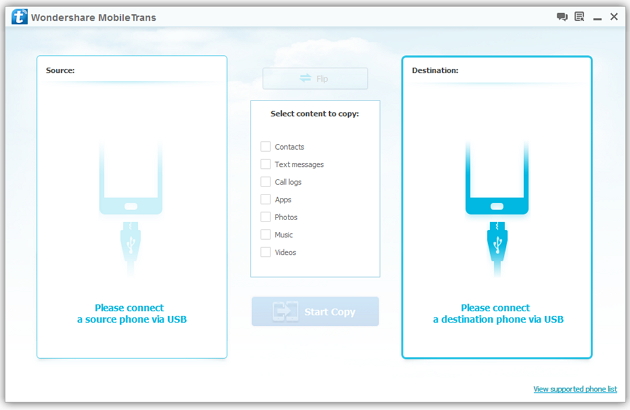
Step 2: Connect your HTC and Samsung S3 to the computer
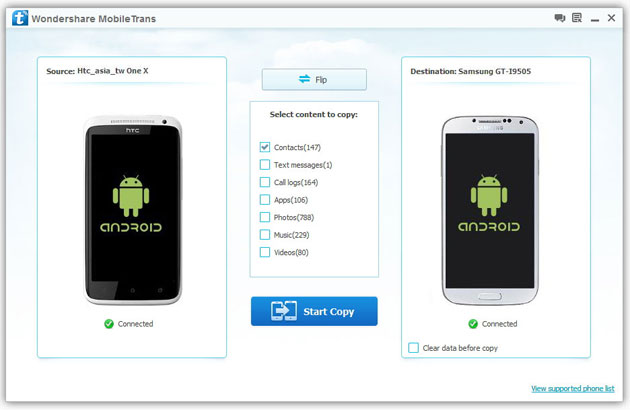
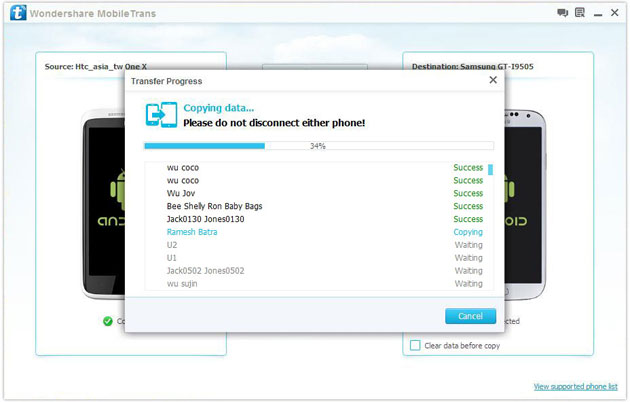
Step 3: Transfer contacts from THC to Samsung Galaxy S3
2) Not just contacts, transfer SMS, call logs, photos, music, videos and apps*
3) Comprehensive contact copy, including job title, email addresses, company name, etc.
4) Works with over 2,000 phones including Droid, Symbian (Nokia), and all models of iPhones, including new iPhone 5.
5) Transfers content between phones on different networks. AT&T, Verizon, Sprint, T-Mobile - no problem!
How to Transfer Music from Samsung Galaxy to iPhone 6s
Many people, especially youngster, like editing and creating their own songs or music with some useful and fabulous music-editing apps on Samsung smartphone, for instance Galaxy S6/ S6 Edge, Galaxy Note 4. However, if you buy a new iPhone 6s and you want to transfer the edited music from Samsung device to your iPhone 6s, how could you get it done? I guess you will firstly save the songs from Samsung to PC/Mac, then,mobiletrans import the music into iTunes and sync iPhone 6s with iTunes Library. This is exactly a workable solution yet inconvenient. Here is another way helping you to directly transfer music from Samsung devices to iPhone 6s.
TunesGo is a professional tool which supports you to straightforwardly transfer music in between iPhone and Android, iTunes and Android as well as iOS and iOS. Besides, it also enables you to download song tracks from YouTube, manage and organize albums in iTunes.Tutorial about Transferring Music from Samsung to iPhone 6s
Step 1 Download and Install TunesGo
Hit the buttons to download the software on your computer: Windows users click the left button and Mac users the right one. When download finished, set up the program.
Step 2 Plug Samsung and iPhone 6s in the Computer
Run the TunesGo on the computer after installation. Connect both your Android and iOS device to PC/Mac via USB cable.
For Samsung device, you need to enable USB debugging on the phone so as to build the connection.
1) For Android 4.2 or newer: Go to "Settings" > "About Phone" on your Samsung. Press "Build number" for several times until "You are under developer mode". Then enter "Settings" again, and choose "Developer options" > "USB debugging".
2) For Android 3.0 to 4.1: Go to "Settings" > "Developer options" > "USB debugging".
3) For Android 2.3 or earlier: Go to "Settings" > "Applications" > "Development". Check "USB debugging".
When it's connected, you can see it as the below interface.
As for iPhone, you need to tap "Trust" in the phone screen to build the connection.
Step 3 Copy Music from Samsung to iPhone 6s
Click the Samsung device in the left menu and hit the "Music" option under the Samsung panel to open the playlists. All the songs in Samsung Galaxy will be listed in the main window. Select the songs you want to transfer and click the "Export" button. A pop-up box will show you three options, how to transfer candy crush to new iphone hit "Export to iPhone 6s (the name of your iPhone)", the selected music will start transferring from Samsung Galaxy to iPhone 6s. 
More Feature: Manage iTunes Library
TunesGo also works as the iTunes Library manager. With it, you can fix the missing and inaccurate tags and covers of iTunes music. Clean up duplicated songs as well as remove missing tracks.
There are more impressive features on TunesGo waiting for your exploration. Hurry to download it and give it a shot.
How to Transfer Contact from iPhone to Computer - iPhone Contact Transfer
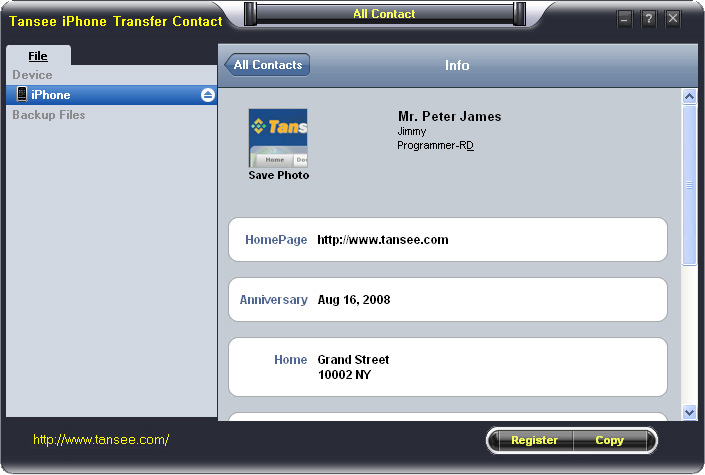
iPhone Transfer Contact can provide you: Tutorial 1: Transfer Contact from iPhone to Computer Tutorial 2: Transfer Contact’s photo from iPhone to Computer Tutorial 3: Restore Contact from CSV file to Outlook Tutorial 4: Restore Contact from CSV file to iPhone Step 2: Connect your iPhone to your computer, mobiletrans and run iPhone Transfer Contact. Then, your contacts on iPhone memory will display as shown in your iPhone screen automatically as fig 1. You can click on single name, all his or her information will display as fig 2 shown.
- Backup iPhone Contact’s Photos.
- Export two types of file format (Antc file, Text file).
- Export full screen of iPhone contact’s Photos.
- View Contacts in Text file format (.txt) or ANTC file format (.antc) on PC.
- Password protection support (ANTC file only).
Tutorial 1: How to transfer contact from iPhone to computer
Step 1: You can download iPhone Transfer Contact free version here, and install the software (skip if done yet).
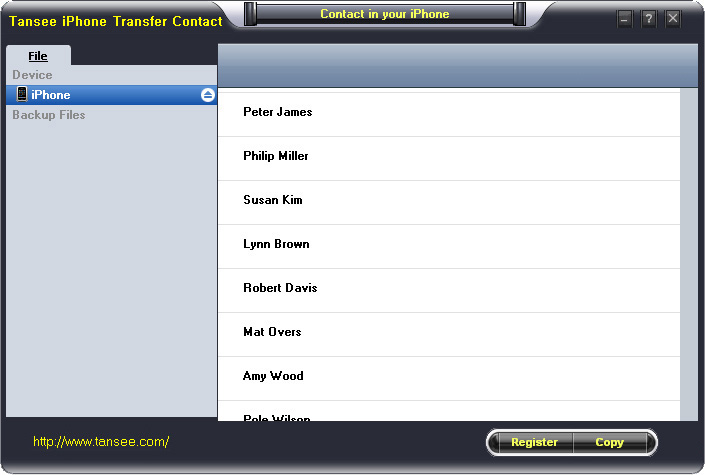
Step 3-a: In fig 1 situation, click button "Copy" to copy all contacts from your iPhone to your computer , then select options:
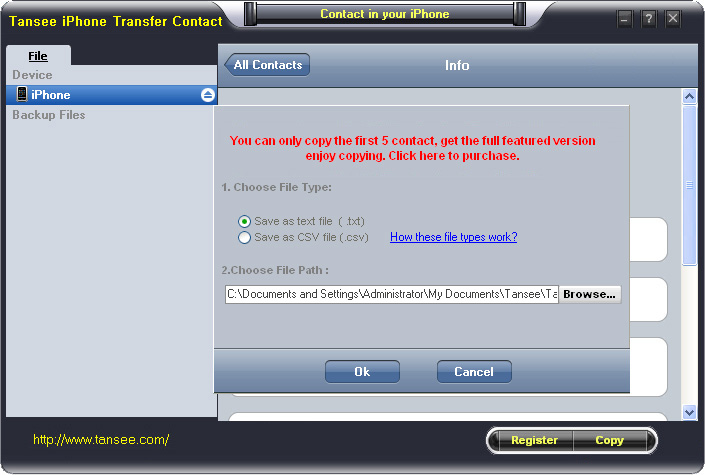
1: Choose File Type: backup to TXT file, ANTC file or CSV file;
2: Choose File Path: You also can change the backup path if you don’t use default path.
3: Advanced Option: if you choose ANTC format in step 1, you can add a password to protect the file.
Note: You must remember your password, because we don’t know the it except yourself. So please remember it well.
Click "OK" Button to finish the Copy. Please see fig 3.
Note: With trail version, you can only copy the first 5 contacts .

1: Choose File Type: Backup contacts to TXT file, and CSV file in single contact transfer;
2: Choose File Path: You can change the backup path if you do not use default path;
3: Advanced Option: Disabled in single contact transfer.
Click OK Button to finish the Copy. See fig 4.
Note: You can only copy the first 5 contacts in trail version.
Tutorial 2: How to transfer iPhone contact’s photo to computer?
In fig 2 above, you can click the photo of single person to save it to your computer., then you can transfer iPhone contact’s photo to computer. See fig 5.

Tutorial: 3:How to restore contact from CSV file to outlook?
Step 1: Backup all your contacts from iPhone to computer as .csv file format using iPhone Transfer Contact.
Step 2: Click on Start - All Programs - Accessories, click to open Address Book.
In Address Book, click File - Import - Other Address Book..., select "Text File (Comma Separated Values)", click Import, then browser the CSV file, click Next, Map the fields you wish to import, click finish.After all this, you had import the contacts to your Windows Address Book.
Step 3: Open Outlook; Open the File menu; Choose “Import and Export”; In the “Import and Export Wizard” dialog box choose “Import Internet email and address", then choose "OUTLOOK EXPRESS 4.X 5.X 6.X", click "Next".
Tutorial 4: How to restore contact from CSV file to iPhone?
Step 1: Backup all your iPhone contacts computer as .csv file format using iPhone Transfer Contact.
Step 2: Click on Start - All Programs - Accessories, click to open Address Book.
In Address Book, click File - Import - Other Address Book..., select "Text File (Comma Separated Values)", click Import, then browser the CSV file, click Next, Map the fields you wish to import, click finish.After all this,how to use anytrans you had import the contacts to your Windows Address Book.
Step 3: Open iTunes, connect iPhone, click to select the iPhone on iTunes, choose Info tab, in Contact section, check "Sync contacts with Window Address Book", click apply. Back To Homepage.

IPhone 11 ($ 453) / 11 Pro ($ 487) / 11 Pro Max ($ 535)
IPhone 7 ($ 200) / 7 + ($ 250) / 8 ($ 275) / 8 + ($ 300)
IPhone X ($ 330) / XR ($ 355) / XS ($ 387) / XS Max ($ 420)
IPhone 11 ($ 453) / 11 Pro ($ 487) / 11 Pro Max ($ 535)
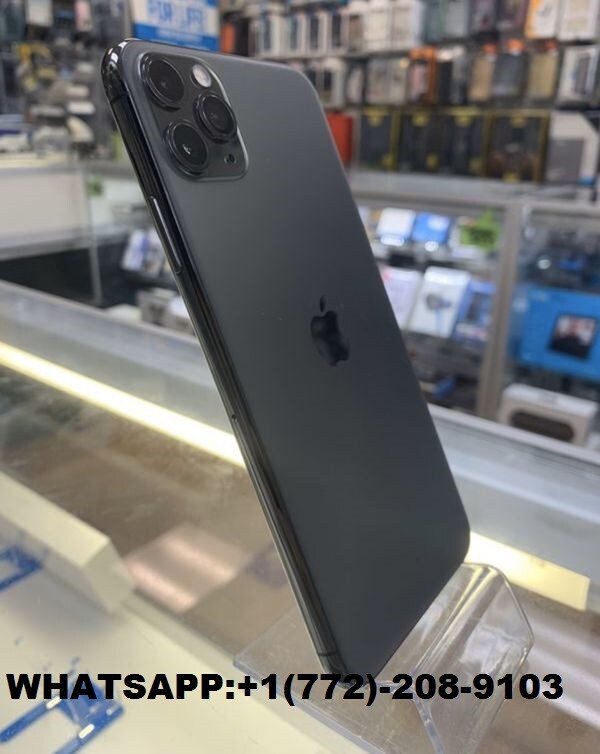
All of our mobile phones are brand new, original and factory unlocked and we also do not sell China made or clone products here in our company, I already have my Apple certificate proving that I am a real and legitimate Apple supplier.
Pokemon Go Stoped Working in Kolkata
Hey Guys, today at 6am when i opened pokemon go it was showing no pokemon nearby pokestops or gym... It will be nice if u guys can say what is up with poke go in your area....
you can check this link for official release date and time of Pokemon Go in India
http://www.mmoserverstatus.com/pokemon_go